

Contents
What the Algo Does
ORBitIt trades one edge you built in ORBit, on one NinjaTrader chart, exactly as the statistics measured it.
You build and validate an edge in the tool, publish it as a short Preset Code, and paste that code into the strategy. The algo then forms the opening range, checks every filter of the edge against today, enters on the edge’s trigger and manages the trade — on the real futures feed, so the volume filters are enforced too.
It is built for prop challenges: one proven setup per chart, sizing from your risk budget, a daily-loss halt, the risk per contract on the chart before the trade, and — if you want it — your own stop, target, breakeven and trailing stop.
What You Need
The ORBit plan, NinjaTrader 8 and a data feed for the market you trade.
- The ORBit Plan
- Everything in Pro plus the ORBit Algo. Buy it on the pricing page; as a Pro subscriber, Get ORBit there (or on the ORBit card inside the tool) upgrades your subscription, with the rest of the month charged pro rata. The ORBit Algo module appears in the tool’s rail the moment it is active.
- NinjaTrader 8
- Any licence that can run strategies, with a live or simulated connection for the market.
- A Saved Edge
- Built and saved in the tool. All eight trade types work: Breakout, Reversal, Failed Breakout (including the close-back-inside entry), OR Close, Rebreak, Break and Retest, Reversal Rebreak and Reversal Break and Retest.
- A Free Activation Slot
- Your licence key runs on up to three computers, shared with the MetaTrader 5 EA — a computer running both counts once.
Markets: NQ, ES, YM, RTY, GC, SI, CL, NG, BTC, FDAX, NKD and the currency futures 6E, 6B, 6J, 6A, 6S — and their micros, which run the parent’s statistics (MNQ runs an NQ edge).
Download and Import the Algo
Once per computer.
- Open the Setup Tab In the tool: ORBit Algo in the rail → Setup.
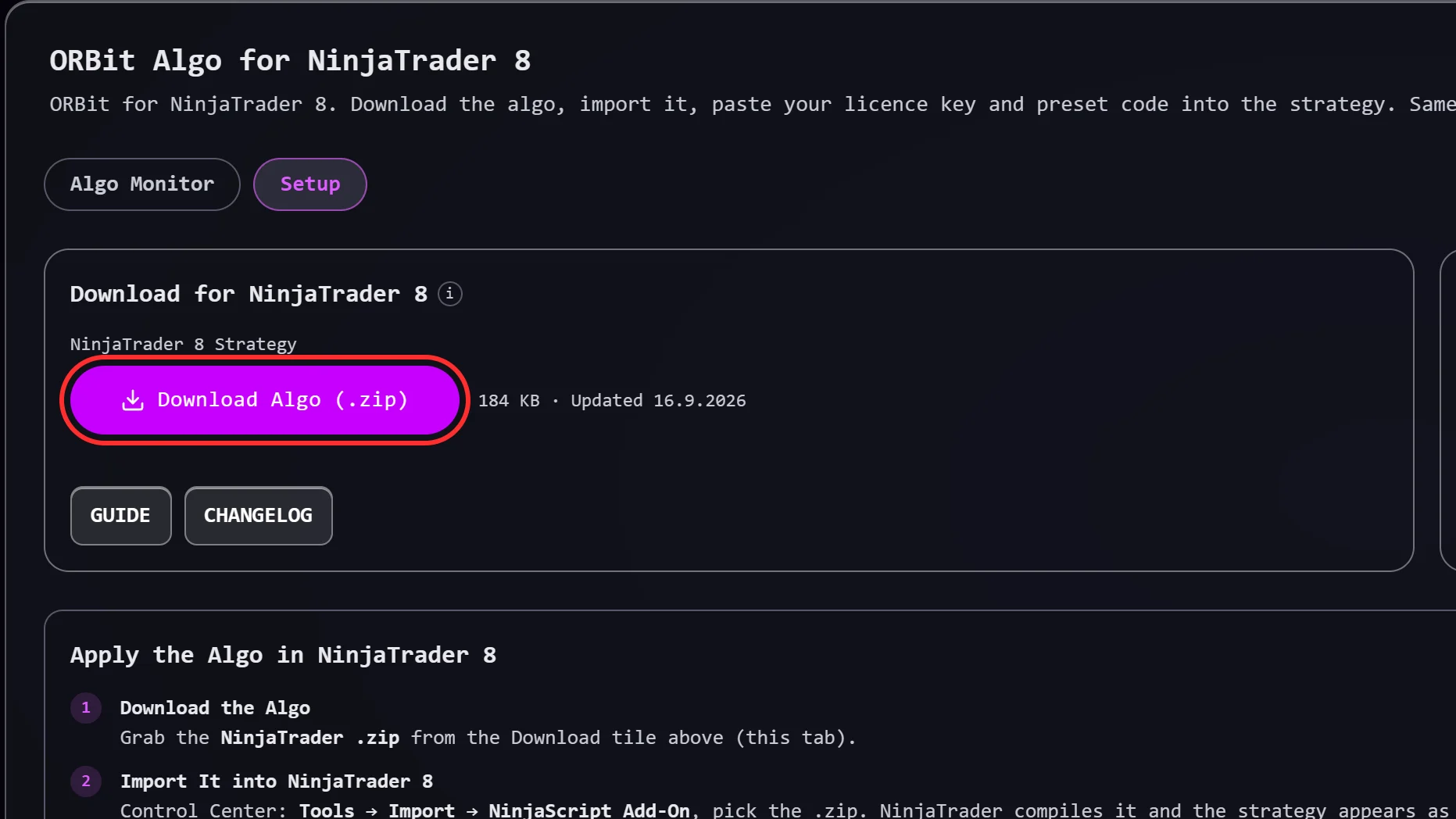
- Download the Algo The Download tile → Download Algo (.zip). Keep the .zip as it is — do not unzip it.
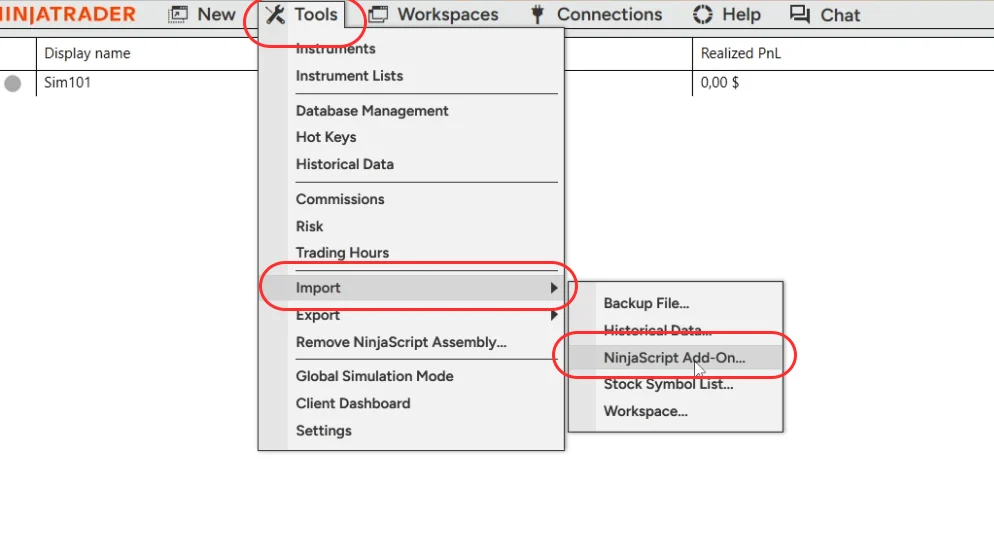
- Import It into NinjaTrader 8 Control Center → Tools → Import → NinjaScript Add-On, pick the .zip. NinjaTrader compiles it; the strategy is then listed as ORBit Algo for NinjaTrader 8 with its version, e.g. 1.1.
Copy Your Licence Key
One key for the ORBit plan — the same key the MetaTrader 5 EA uses.
- Find the License Key Tile Same Setup tab. Copy puts the key on your clipboard.
- Check Your Activations The tile lists every computer using the key. Each can be renamed (so you can tell your PC from your VPS) and released on its own.
Publish the Edge as a Preset Code
The algo pulls the whole setup online by a short code — nothing long to paste.
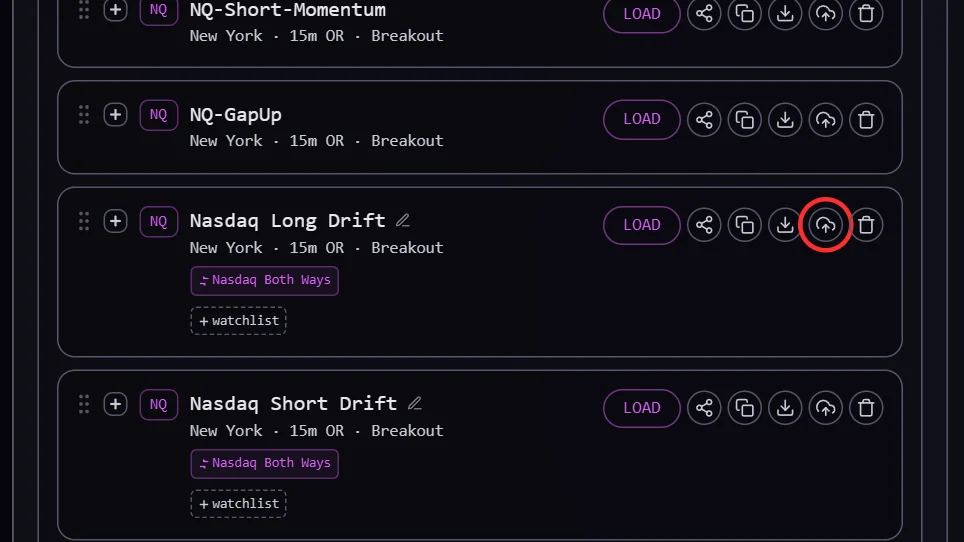
- Open the Edge’s Card ORBit Assembler → Saved Edges, or the Edges tab of the side panel.
- Click Copy EA Code The tool uploads the edge’s settings under its code and copies the code to your clipboard.
Open the Right Chart
The one thing that stops the algo cold if it is wrong.
- The Edge’s Market The same market the edge was built on, the continuous front contract. A micro is fine.
- A 1 Minute Chart Minute bars, and the period must divide the edge’s trigger (1 or 5 minutes for a 5-minute close, 1, 5 or 15 for a 15-minute close). Touch, Rebreak and Break and Retest edges should always run on 1-minute — that is the resolution they were measured at.
- A Full 24 Hour Session Template Not an RTH-only template. The volatility filter reads the full session’s daily range, and the template must cover the edge’s whole range. For FDAX that is Eurex Equity Index Futures Extended — the default Eurex template starts at 02:00 ET.
You do not need to change NinjaTrader’s time zone. The algo converts your display time zone to New York time itself; its STARTED line in the Output says which conversion it applied.
Add the Strategy and Paste the Keys
Two codes, your risk, and the Enabled box.
- Open the Strategies Dialog Right-click the chart → Strategies… → add ORBit Algo for NinjaTrader 8.
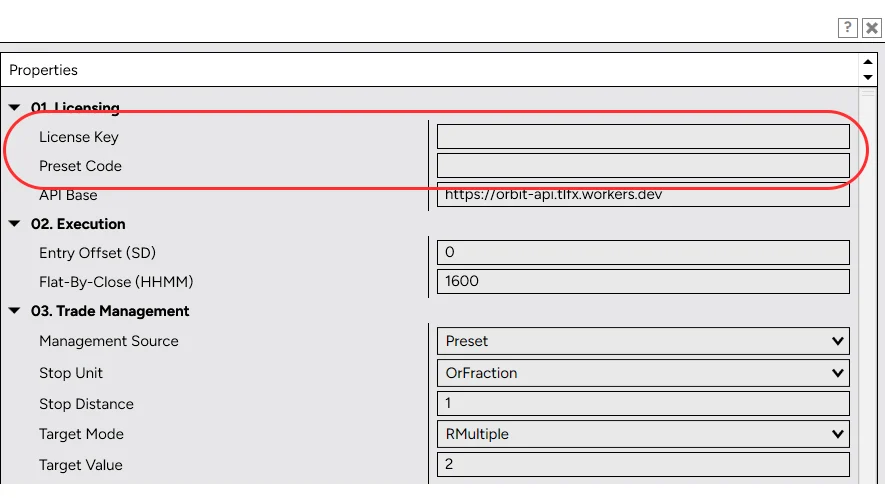
- Paste the Two Codes Group 01. Licensing: your License Key and the edge’s Preset Code. Leave API Base as shipped.
- Set Your Risk Group 04. Risk — see Size the position. The default risks 1% of a 100,000 balance per trade.
- Leave Calculate on Bar Close The algo forces it anyway and refuses to trade if it did not stick.
- Tick Enabled and Click OK The chart label loses its (D) and the dashboard appears in the top-right corner.
Check It Started
The Output window says so in plain words.
Open New → NinjaScript Output. A healthy start prints, in this order:
- PRESET ACTIVE
- A summary of the edge it loaded: market, range window, direction, trigger, trade type, target and stop, filters and sizing.
- STARTED
- The instrument, chart period, account, bars loaded and the time-zone conversion, then the edge, licence, risk and execution settings it runs with. A STOP - NOT TRADING line after it names what to fix.
- REALTIME
- It is live, with today’s range window and flat-by time. Also warns when today is a US holiday the edge excludes.
Read the Panel on the Chart
Everything the algo knows about today, top to bottom.
- Status
- What it is doing: waiting for OR, armed, in trade, done, filtered out, skipped (with the reason) — red when it cannot trade (licence, wrong chart, refused preset), amber when today is filtered out.
- Symbol · Setup · Management
- The chart symbol (and micro → parent), the edge’s window, trigger, direction and trade type, and who manages the trade: preset, as measured or custom — edge stats don’t apply.
- Range
- Today’s opening range — forming while it builds, then its high, low, size and close.
- Today’s Filters
- One row per filter: ✓ passes, ✗ excluded, — not used by the edge, or ⏳ pending. While the range forms the rows are live estimates marked ~; the verdict is final at the range close.
- Position
- Side, size, average price and floating P&L with the live stop and target — or the resting entry orders while flat.
- Risk
- Flat: the stop distance the next entry carries, the risk of one contract, the contracts your budget buys and the total. In a trade: the money between your fill and the live stop.
- Daily Loss Halt
- Today’s loss against your limit, when one is set.
The OR box and levels draw on the chart too (switch off with Draw Levels on Chart). Results over time live in the Algo Monitor, not on the chart.
Size the Position
Group 04. Risk.
| Input | Default | What It Does |
|---|---|---|
| Lot Size Mode | RiskPercent | RiskPercent of the balance, FixedContracts, or RiskMoney per trade. |
| Risk Value (Contracts / % / $) | 1 | Read in the unit Lot Size Mode picks. |
| Initial Balance | 100,000 | The balance the percentage is taken from — on a prop account, the evaluation size. |
| Max Contracts | 100 | A hard cap, whatever the budget says. |
| Trade 1 If Below Budget | On | If one contract already risks more than the budget: on = trade one anyway, off = skip the day. |
| Daily Loss Halt ($, 0 = Off) | 0 | No new entries once this strategy’s closed losses today reach the amount. Counts this strategy only, not the account. |
The Risk row on the dashboard shows the result before the trade — check it once on a new chart.
Manage the Trade Yourself (Optional)
Keep the edge’s entry and filters, choose your own exits.
Group 03. Trade Management. With Management Source = Preset (the default) the stop and target are the edge’s, exactly as measured, and every input below it is ignored. Switch to Custom and the preset still picks the days, the range, the entry and the filters — you pick the exits.
| Input | Options | Default |
|---|---|---|
| Stop Unit · Stop Distance | OrFraction or Ticks | 1 range width |
| Target Mode · Target Value | EndOfDay, OrFraction, RMultiple or Ticks | 2 R |
| Breakeven | On / Off, with a trigger (range fraction, R or ticks) and an offset in ticks | Off, at 1 R |
| Trailing Stop | On / Off, with a trigger (range fraction, R or ticks) | Off, 1 R trigger |
| Trail Type | Distance (a set distance behind the best price, in range fractions, R or ticks) or CandleClose (the stop moves to the low of each closed candle on a long, the high on a short) | Distance, 10 ticks |
| Trail Candle Timeframe (Minutes) | The candle size for CandleClose, clock aligned like a chart candle | 60 |
| Partial TP | On / Off, with a trigger from the fill (range fraction, R or ticks) and a size in percent | Off, 1 R, 50% |
- R is always the trade’s own distance from fill to stop.
- Breakeven and the trail are checked at each 1-minute bar close and only ever tighten the stop.
- Partial TP rests as a limit order and closes its share rounded down to whole contracts. On a 1 contract trade it is skipped. The stop and target then cover the contracts left.
- The stop always sits at the broker as a real order — it survives NinjaTrader closing.
- Position size follows your custom stop.
Execution Settings
Group 02. Execution — two inputs, both rarely touched.
- Entry Offset (SD)
- Touch entries only: how far inside the range edge the resting stop sits, as a fraction of the range. 0 = on the edge.
- Flat-By-Close (HHMM)
- The time, in New York time, every position is closed. 1600 by default. An edge with a Close at NY open exit closes at 09:30 whatever this says. On US early-close days the stock-index futures close at 12:45; crude, metals, currencies and the rest trade to the end of their session, like in the tool.
Watch It from the Algo Monitor
Every running instance reports once a minute — no need to remote into the VPS.
- Open the Monitor ORBit Algo → Algo Monitor. One card per account, however many charts run on it: name, account number, equity, today’s running P&L (closed trades plus the open ones) and Online / Offline.
- Select a Card The dashboard below it has three views: Metrics (the equity curve and the numbers), Open & Closed Positions and Calendar. The Edge and Symbol menus in its header narrow all of it to one chart or one market.
- Name the Account Hover the card → Rename, e.g. “Prop 1”. Shown on every device.
Halt It from Anywhere
Stop an instance opening trades without touching NinjaTrader.
- Click Halt Trading In the Algo Monitor header. It halts every ORBit chart on the selected account — or just one, if the Edge filter is set. Tick Also close its open positions now to flatten at market too — unticked, an open trade runs to its own stop or target.
- Wait for Halted The pill reads Halting… until the next heartbeat (within a minute), then Halted. It cancels its resting entries and blocks new ones, and stays on the chart.
- Resume Resume Trading arms it again on the next heartbeat.
The halt is held on your account, not in NinjaTrader — a restart does not undo it.
Run It in the Strategy Analyzer
Check it trades what the tool measured before it trades your money.
- Open the Strategy Analyzer Control Center → New → Strategy Analyzer. Strategy: ORBit Algo for NinjaTrader 8.
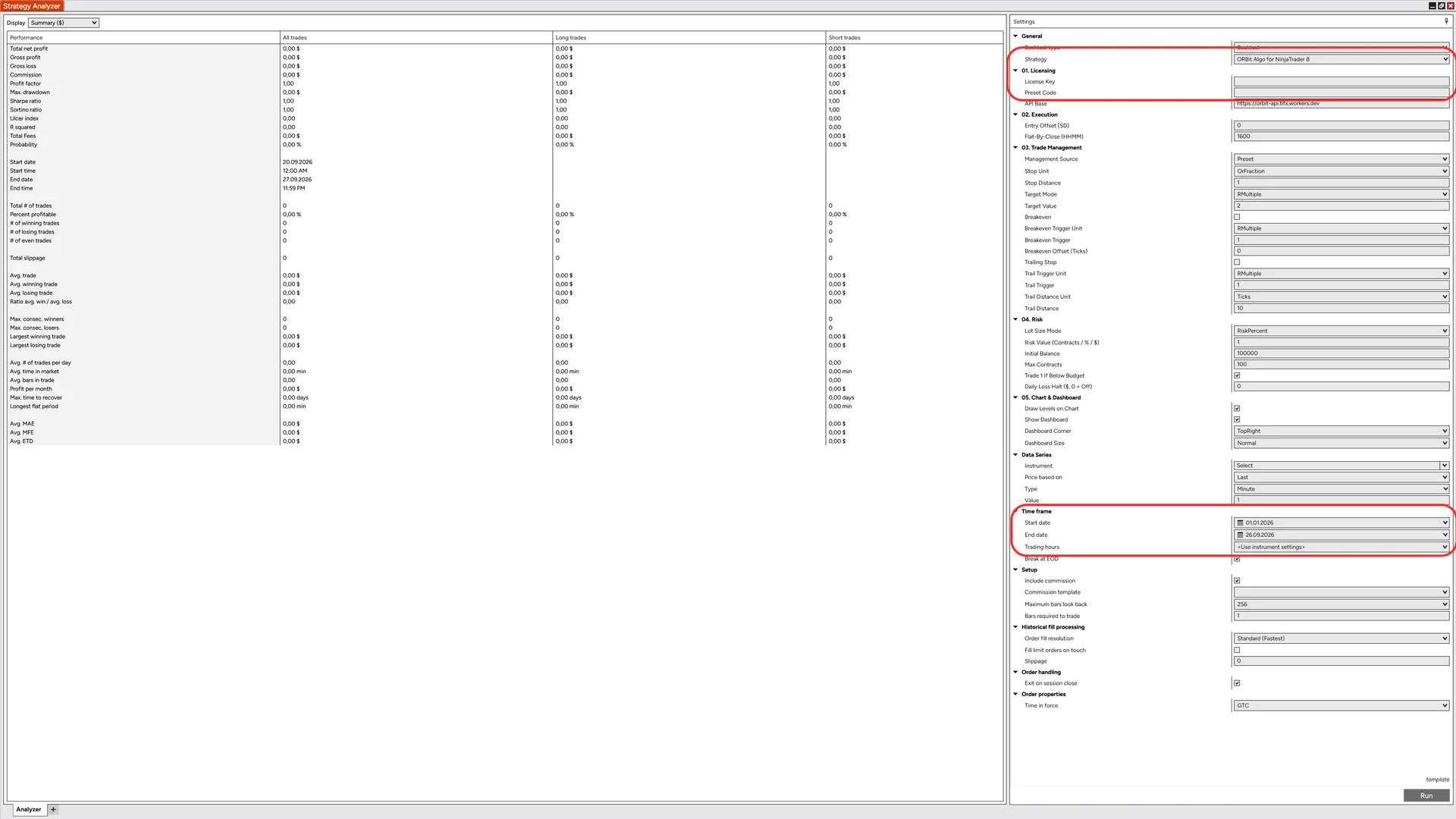
- Pick the Market The edge’s market as a continuous contract, e.g.
NQ ##-##. A micro (MNQ) is fine. - Merge Policy: Merge Non Back Adjusted Control Center → Tools → Options → Market Data → Merge Policy, then reload the chart. The tool’s history is the unadjusted front month, which is exactly this. With Do Not Merge a single contract runs on thin back-month prices for most of the year and reads the filters differently; Back Adjusted shifts older prices, so the gap and volatility percentages drift.
- Data Series: 1 Minute and 24 Hour Session Type Minute, Value 1, and a full-session trading-hours template (the ETH one for that market). A regular-hours template cuts the overnight bars the filters read. For FDAX that is Eurex Equity Index Futures Extended — the default Eurex template starts at 02:00 ET.
- Date Range Start about two months before the first day you want to judge. The trend and Trading-Style filters need that much history — until it is there they filter every day out.
- Paste the Two Codes Group 01. Licensing: License Key and Preset Code. The Analyzer fetches the edge online too, so it needs an internet connection.
- Order Fill Resolution: Standard NinjaTrader does not offer High for this strategy, and on 1-minute bars Standard already matches the resolution the statistics were measured at. Leave Calculate on On bar close.
- Switch On Show Daily Filter Values Group 05. Chart & Dashboard. Every session’s filter values, its verdict and what happened (traded, or which check stopped it) are drawn below the opening range and written to the Output window, one line per session — the quickest way to compare a day with the tool.
- Run and Check the Output Click Run. The Output window (New → NinjaScript Output) shows preset code … loaded online and STARTED. A refusal line there names what to fix — see It is not trading.
Compare the Backtest with the Tool
On the same edge, the same days should trade the same way.
- Read the Summary Net profit, drawdown, trade count and win rate. With Management Source = Preset the win rate should sit close to the tool’s for the same period.
- Open the Trades Tab Every trade with its entry and exit time and price.
- Check Single Days Open the same edge in ORBit Charts and step through the same days. The entries, exits and R should line up; the Analyzer’s Chart tab draws the range and levels too.
- Commission is included in the Analyzer and not in the tool.
- A Custom stop, target, breakeven or trail makes it a different trade — compare with Preset first.
- A day the tool trades and the Analyzer skips is usually a data gap in the feed or too little history for a filter. With Show Daily Filter Values on, the Output names the reason for every session, lists weekdays the chart has no data for, and names sessions skipped because a filter had too little history.
- Missing or odd days in NinjaTrader’s own history: if the chart jumps over a day, or a day shows almost no volume, reload that range under Tools → Historical Data. Those days cannot match the tool.
- Contract rolls: NinjaTrader switches to the next contract on its own calendar date, the tool’s data when the next contract takes over the volume. In a roll week the two can read different contracts for a few days, and a filter that turns on a single touch (like Prior-Day Result) can tip, so a trade can appear on one side only. The gap filters themselves compare one contract on both sides: the algo shifts yesterday’s prices by NinjaTrader’s roll offset, the tool by its own roll spread.
- Small price differences between data feeds are normal. Expect results to differ by about a tick per trade, and a filter right at its threshold (an overnight gap of 0.10%) can tip either way.
It Is Not Trading
Find the line in the Output window or the Status row, then the fix.
- Chart Label Starts with (D) and Nothing After the Preset Lines
- The strategy is disabled — NinjaTrader switches strategies off on every compile. Re-tick Enabled.
- WRONG CHART — …
- Not a minute chart, or the period does not divide the trigger. Open a 1-minute chart.
- LICENCE REFUSED: … maximum number of computers
- All three activation slots are taken. Release the computer you no longer use in the License Key tile, then re-enable.
- LICENCE REFUSED: the key is unknown …
- The key was mistyped or regenerated, or the ORBit plan is not active. Copy the key again from the Setup tab.
- no Preset Code — nothing to trade
- Paste a Preset Code. Without one the algo does not trade.
- … this is a PORTFOLIO code
- Publish the edge from its own card and use that code.
- PRESET/CHART MISMATCH
- The edge is for another market. Put it on that market’s chart (a micro is fine).
- filtered out
- Not an error — today fails one of the edge’s filters. The filter rows show which.
- no trade — data gap today
- The feed is missing the bar that closes the range or the trigger. It sits the day out rather than trade on incomplete data.
- the day’s first touch of the range … no trade today
- Not an error. A Touch Breakout skips the day when the first touch came before its entry orders were in place — outside the trade window, or while the strategy could not arm them (licence, daily loss halt, connection). The line names which. A later touch is not the trade the edge measured.
- Warning on Load: Single Contract or Back-Adjusted History
- The chart’s history cannot match the tool: a single contract reaching back before its roll without merging, or back-adjusted prices. Set Merge Policy to Merge Non Back Adjusted (Tools → Options → Market Data) and reload.
- Warning on Load: the Range Is Only N% Inside the Trading Hours
- The chart’s trading-hours template starts or ends inside the edge’s range, so that part has no bars. Below 60% every day is skipped. Set Trading Hours to the template the warning names (for FDAX Eurex Equity Index Futures Extended) and reload.
- trend / Trading-Style history not ready
- The chart loaded too little history for those filters. Raise Days to load in the chart’s Data Series.
- ORDER CIRCUIT BREAKER
- A safety stop after 40 orders in one session: it cancels everything, flattens once and stays off until you restart the strategy. Tell us — it should never fire in normal use.
- The Strategy Switched Itself Off After an Order Was Rejected
- NinjaTrader stops a strategy on a real-time rejection and closes its position. Check the Orders tab for the reason, then re-enable.
Still stuck? The NinjaScript Output explains every decision the Algo makes. Then open the account in the Algo Monitor and press Send Logs: every running Algo on that account uploads its log for today and yesterday to us within a minute; you can send once an hour. Tell us on Discord or by email what to look at. The same log is kept on your computer in Documents\NinjaTrader 8\ORBit Logs.
Install a New Version
Same import, over the top of the old one.
- See What Changed The Download tile’s Changelog button. Switch on Email me on new versions there (or under Account → Notifications) to be told by email.
- Download and Import Download the new .zip and import it exactly as the first time. Confirm when NinjaTrader asks to replace the existing files.
- Enable It Again The import compiles, so every running strategy is now disabled. Re-add or re-tick Enabled on each chart and check its inputs still read what you expect.
Still Stuck?
Ask in the Discord or send us an email — include the lines from the log or a screenshot of the dashboard, and it is usually solved in one reply.