

Contents
What the Indicator Does
FreeIt draws the statistics of the setup you built in ORBit onto your own TradingView chart.
You build and filter a setup in the tool, copy it as a short preset string, and paste that into the indicator. From then on the chart shows where that setup has historically run to, where it pulls back to, and whether today even qualifies for it.
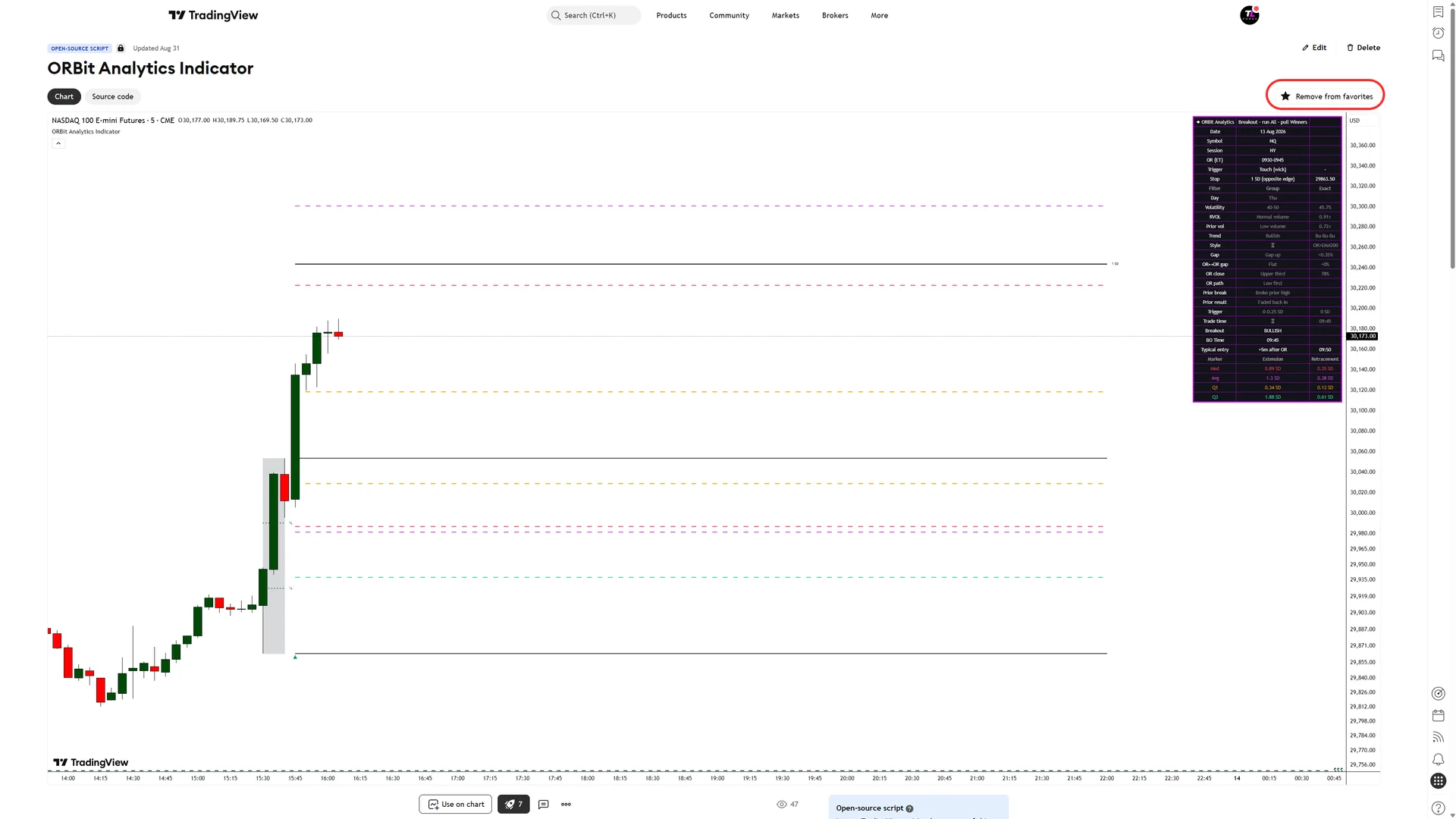
- The opening-range box, its thirds and a standard-deviation grid measured off it (1 SD = one opening-range width).
- Extension and retracement lines — median, average, Q1 and Q3 — once the range breaks in the setup’s direction.
- Breakout triangles and, optionally, the typical entry times.
- A dashboard that marks every filter of your setup green or red for today — the quickest way to see a day you should sit out.
What You Need
A TradingView account and a setup built in ORBit. That is all.
- TradingView
- Any plan, including the free one.
- ORBit
- The indicator and the export are free on every plan. Nasdaq is free; the other markets need Pro for their statistics.
- A 1 or 5 Minute Chart
- Opening ranges move in 5-minute steps, so a 5-minute chart always lines up with the range and draws the same box and lines as a 1-minute one. A candle-close entry needs a chart at or below that candle (5-minute close → 5-minute chart or lower). The one thing 1-minute does better: the OR path check, which can read “Indeterminate” on a 5-minute chart when the range’s high and low print in the same candle.
- A Supported Trade Type
- Breakout draws, and a Rebreak or Break and Retest setup goes over as the plain breakout it starts with. Reversal, OR Close, the two reversal variants and the Failed Breakout’s close back inside are not chart drawings — the tool says so and offers nothing to copy for them.
Add the Indicator to TradingView
Once per TradingView account.
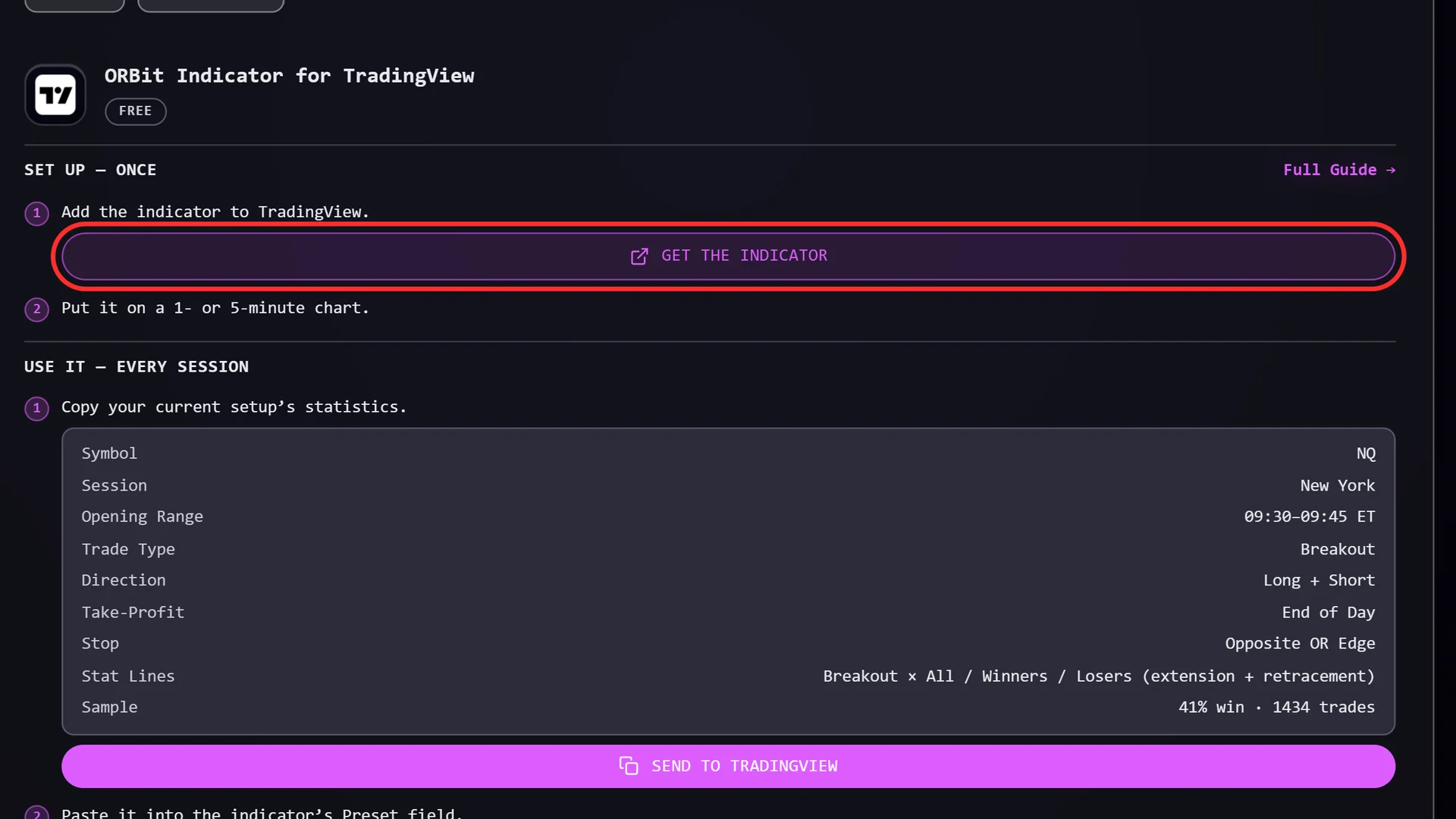
- Open the TradingView Tile In the tool, open ORBit Observer from the rail. The lower tile on the left is Take It to TradingView.
- Click Get the Indicator Under Set Up Once. It opens the indicator’s page on TradingView.
- Add It to Your Chart On the TradingView page, add it to your favourites (or straight to a chart). On any chart it is then under Indicators → Favorites → ORBit Indicator for TradingView.
Set Up the Chart
Two settings, once per chart layout.
- Open a 1 or 5 Minute Chart of the Market The same market as your setup — the continuous futures contract (NQ1!, ES1!, GC1! …). A currency setup also works on its spot pair: 6E on EURUSD, 6B on GBPUSD, and so on; the dashboard shows a Spot pair row when it does that.
- Match the Indicator to Your Chart Theme Indicator settings → Theme → Chart Background. It ships on Light (black lines); on a dark chart pick Dark or the lines disappear into the background.
Send Your Setup to the Chart
Copy in the tool, paste on TradingView — whenever you change the setup.
- Load the Setup in the Tool Build it in the Analyzer or load a saved edge. Whatever is loaded is what gets exported — market, opening range, entry, trade type and every filter.
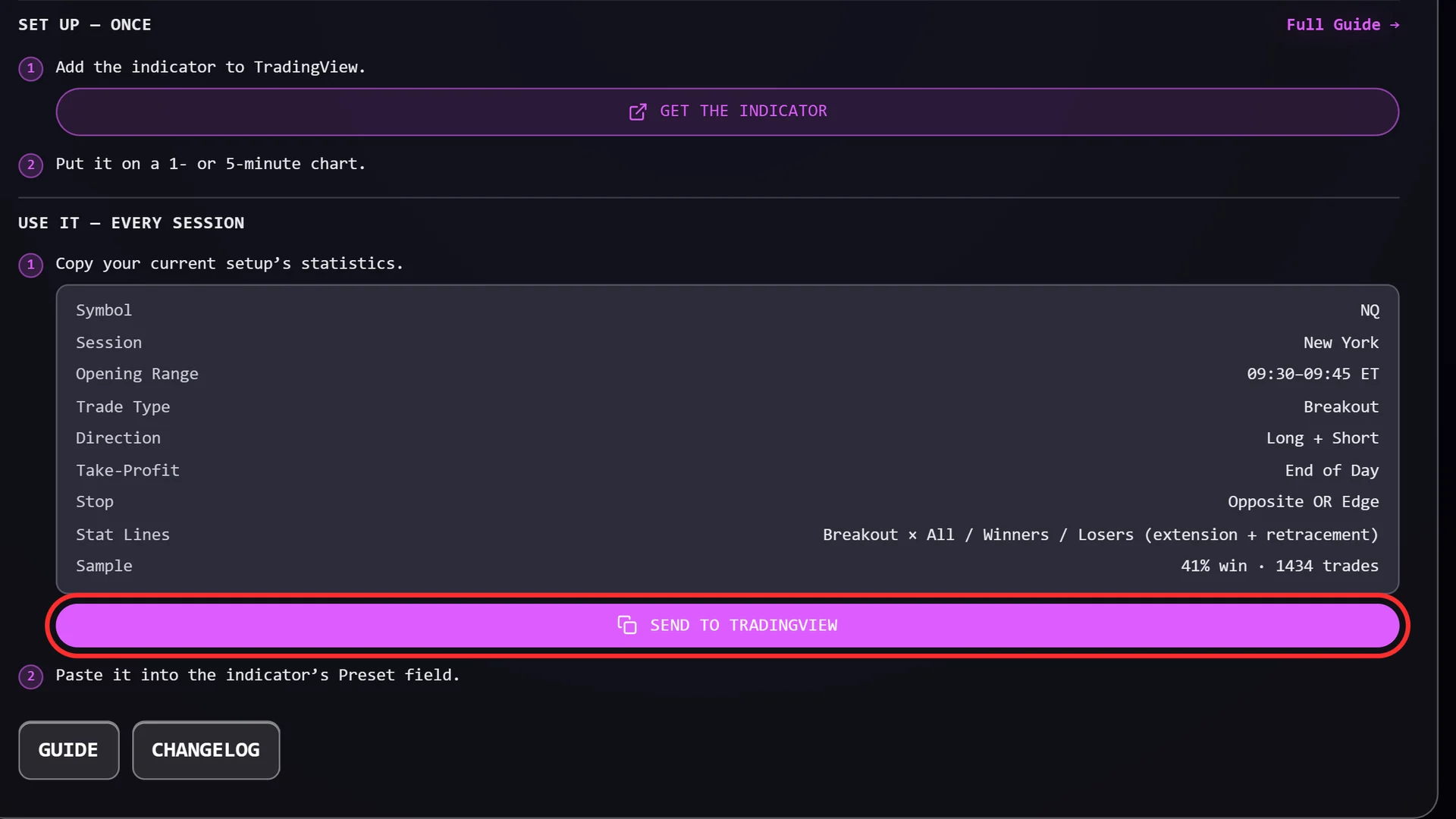
- Click Send to TradingView ORBit Observer → Take It to TradingView → Use It Every Session. The button copies the preset string and reads Copied!.
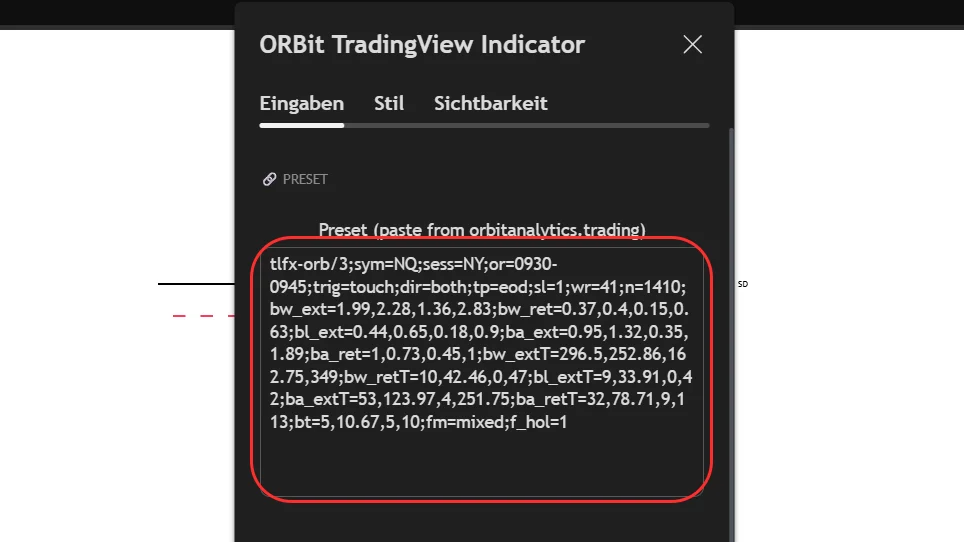
- Paste It into the Indicator On TradingView, open the indicator’s settings (double-click its name on the chart) → Inputs → the Preset box at the top. Replace what is there, click OK.
Read the Chart
What each drawing means.
- The Box
- The opening range. Solid lines at its high and low run to the session exit; dotted lines mark its thirds.
- The SD Grid
- Solid lines at 1, 2 and 3 range widths beyond each edge. It is the ruler the statistics are measured in.
- The Stat Lines
- Dashed lines at the median, average, Q1 and Q3. Beyond the broken edge: how far the move typically ran. Back inside the range: how deep it typically pulled back. They only appear once the range breaks — and only if it breaks in your setup’s direction.
- The Triangles
- ▲ under the range on an up-break, ▼ over it on a down-break, on the candle that confirmed it. On a Touch entry that is the candle that reached the range border; touching it is enough.
- Time Lines
- With Display set to Time (or Time And Place), dotted vertical lines show when the move and the pullback typically happened, and when the entry typically fired.
The stat lines carry no labels on the chart — the legend at the foot of the dashboard lists each marker’s value.
Check the Dashboard Before You Trade
One row per filter, coloured for today.
- Green
- A filter your setup uses, and today is inside it.
- Red
- A filter your setup uses, and today is outside it. The statistics on the chart were measured without days like today.
- Dimmed
- A filter your setup does not use — shown for information.
- ⏳
- Not known yet — most filters settle when the opening range closes.
- Amber
- The filter could not be worked out for today even after the range closed. The tool drops such days, so treat it as a red.
Above the filters: the setup’s market, session, window, entry and stop. The Trigger row turns red with “use ≤ N m chart” when your chart is coarser than a candle-close entry can be checked on.
Choose Which Statistics to Draw
Three inputs decide what the lines describe.
| Input | Options | What It Changes |
|---|---|---|
| Extension Outcome (Run) | All · Winners · Losers — default All | Which trades the “how far it runs” lines are measured on. |
| Retracement Outcome (Pullback) | Winners · All — default Winners | Which trades the pullback lines are measured on. |
| Display | Place · Time · Time And Place — default Place | Price levels, timing lines, or both. |
All Other Settings
Everything else is appearance.
| Group | Input | Default |
|---|---|---|
| Statistics | Show Extension Lines · Show Retracement Lines | On |
| Statistics | Show SD Grid Labels · Show OR Thirds | On |
| Statistics | Show Stat Legend · Show Typical Entry Times | On |
| Statistics | Line Thickness (All Lines) | 2 |
| Statistics | Median · Average · Q1 · Q3 — each on/off with its colour | All on |
| Breakout Signals | Show Breakout Triangles, Up / Down colours | On |
| Display | Keep Past Sessions On The Chart · Show Title · Show Symbol Info | On |
| Dashboard | Show Verification Dashboard | On |
| Dashboard | Position | Top Right |
| Dashboard | Size | Normal |
| Dashboard | Show The Exact-Value Column | On — off gives a narrower panel |
| Theme | Chart Background | Light |
Something Looks Wrong
The common cases, and the fix for each.
- The Lines Are Invisible
- The indicator is on its Light theme over a dark chart. Settings → Theme → Chart Background → Dark.
- “No bar opens inside this preset’s opening range …”
- The chart timeframe is coarser than the range, or the chart has no intraday data. Switch to a 1-minute chart.
- The Box Is There but No Stat Lines
- The range has not broken yet, or it broke the other way. A long-only setup draws nothing on a day that breaks down.
- An Error About a Preset It Cannot Draw
- Reversal, OR Close, Break and Retest, Reversal Rebreak, Reversal Break and Retest, the close-back-inside Failed Breakout and unknown trade types are refused with a message naming the type. Such a string came from the EA export, not the chart export. Copy the setup again from Send to TradingView: it sends a Rebreak or Break and Retest setup as its plain breakout, and the tile tells you when a trade type cannot go to a chart at all.
- “⚠ Symbol — Chart ≠ …”
- The preset was built on a different market than the chart. Open the right chart, or send the setup for this market.
- RVOL Says “use a 5-min chart”
- Relative volume needs about ten loaded intraday sessions, which TradingView does not load below 5 minutes. Prior-day volume works on any timeframe.
- Send to TradingView Is Greyed Out
- The setup has no statistics left (widen the filters), it is still computing, or its trade type is not a chart drawing — the tile says which.
New Versions
Nothing to reinstall — TradingView delivers updates to a published script.
What changed in each version is in the software changelog: the Changelog button at the foot of the Take It to TradingView tile. To be told by email, switch on Email Me on New Versions at the top of that changelog, or under Account → Notifications.
Still Stuck?
Ask in the Discord or send us an email — include the lines from the log or a screenshot of the dashboard, and it is usually solved in one reply.