

ORBit Indicator for NinjaTrader 8
Live conditional statistics on your chart that update as the day confirms.
Contents
What the Indicator Does
ProIt asks ORBit, live, what today’s conditions have historically led to — and draws the answer on your chart.
You set the opening-range window and pick up to two conditions — say, the overnight gap and the opening trend. The indicator works out today’s value for each from your own chart, asks the ORBit service for every past day that matched, and draws where those days ran to and pulled back to. When price reaches an edge of the range, then a 5-minute and a 15-minute candle close beyond it, it asks again — each confirmation narrows the history and tightens the numbers.
- The opening-range box, its thirds and a standard-deviation grid (1 SD = one range width).
- Extension and retracement lines — Q1, median, average, Q3 — for the matching days.
- A confirmation marker for each of touch, 5-minute close and 15-minute close.
- Daily, weekly, monthly, quarterly and yearly highs and lows.
- A dashboard with the win rate, profit factor and day outcomes of the matching days, and how far each differs from an ordinary day.
What You Need
Pro, NinjaTrader 8 and a futures data feed.
- Pro
- The indicator is part of Pro, on every market — Nasdaq included. Your key is checked on every question it asks, so it stops the moment a plan ends.
- NinjaTrader 8
- Any licence, with a data connection for the market (live or delayed). The sixteen ORBit markets and their micros: NQ, ES, YM, RTY, GC, SI, CL, NG, BTC, FDAX, NKD, 6E, 6B, 6J, 6A, 6S.
- An Internet Connection
- The statistics come from the service, not from the file.
Download and Import the Indicator
Once per computer.
- Open the NinjaTrader Tile In the tool: ORBit Observer in the rail → Take It to NinjaTrader.
- Download It Set Up Once → Download the Indicator. Keep the .zip as it is.
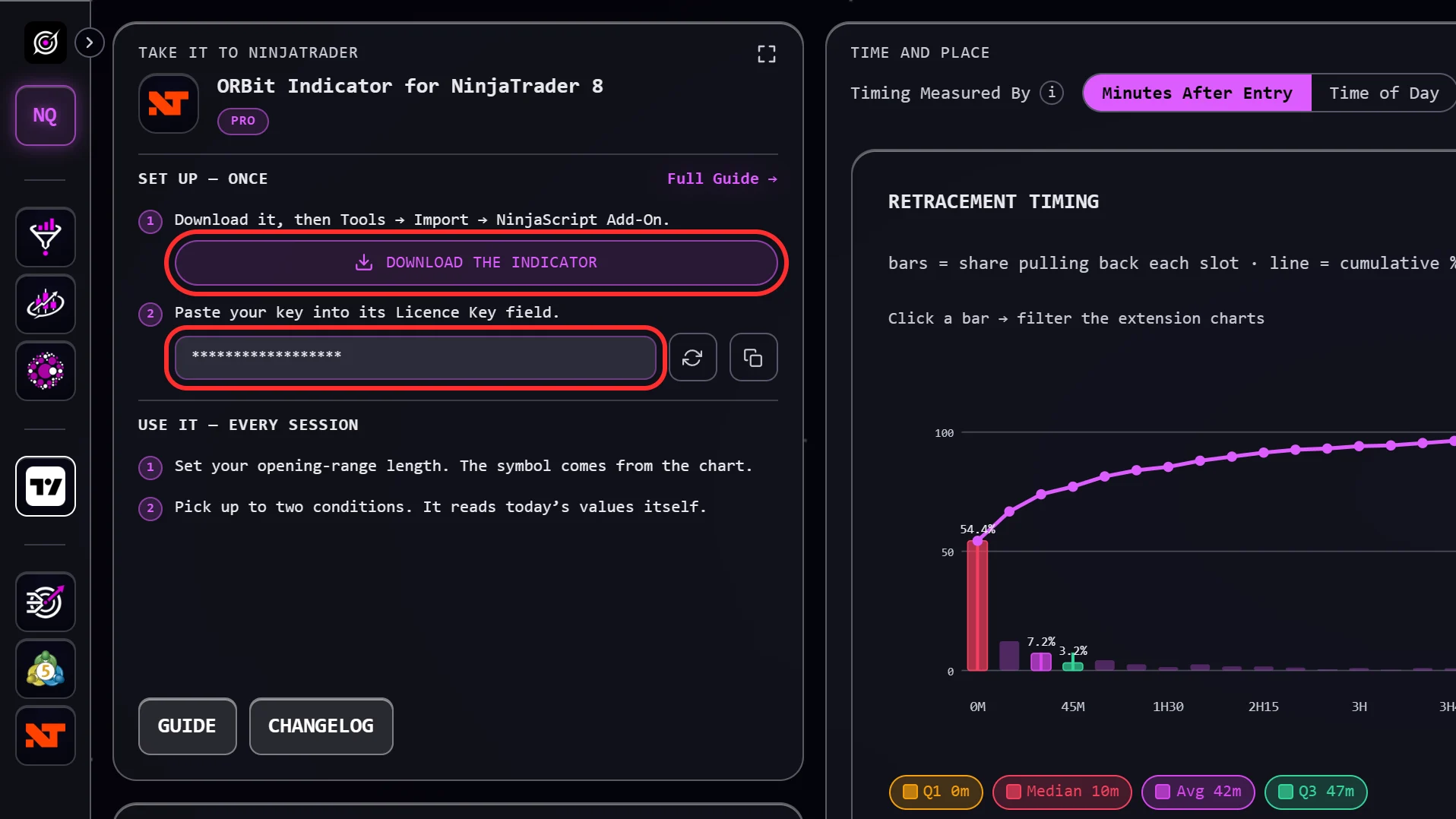
- Import It NinjaTrader Control Center → Tools → Import → NinjaScript Add-On, pick the .zip. It compiles and is listed as ORBit Indicator for NinjaTrader 8.
- Copy Your Key Back on the tile, the copy button next to your key. It is your personal indicator key — keep it to yourself. The circular-arrow button in front of it makes a new key if the old one has leaked (click it twice to confirm — the old key then stops working on every chart).
Open the Right Chart
The same chart you would trade from.
- The Market Any of the sixteen ORBit markets, the continuous front contract. A micro is fine — MNQ reads the NQ statistics, and the dashboard says so.
- A 1 Minute or 5 Minute Chart The indicator needs to see the 5- and 15-minute closes to tighten its reading, so stay at or below 5 minutes. The chart period must divide your range length.
- A Full 24 Hour Session Template Not RTH only — the overnight gap and the volatility read the full session.
- Enough History Days to load at 10 or more. The volume and trend conditions fetch the longer history they need by themselves on startup.
You do not need to change NinjaTrader’s time zone. The indicator converts your display time zone to New York time itself, so the opening range sits at the right hours whatever NinjaTrader is set to.
Add It to the Chart and Paste the Key
Three fields and you are live.
- Open Indicators Right-click the chart → Indicators… → add ORBit Indicator for NinjaTrader 8.
- Paste the Key Group 01. Live statistics → Licence Key.
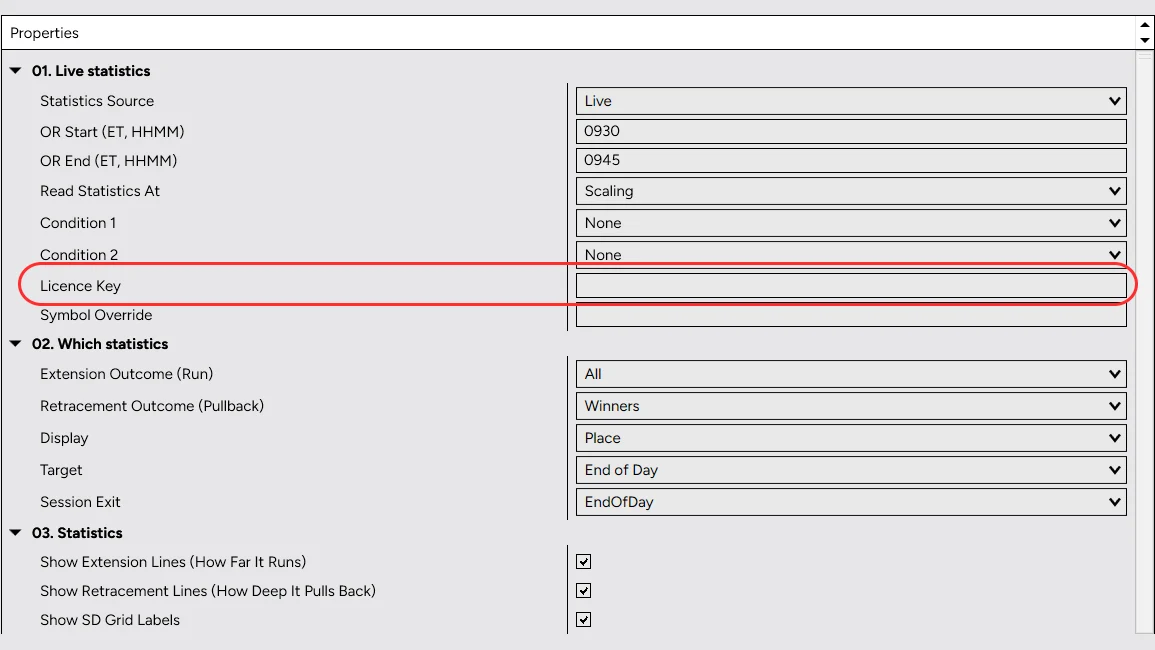
- Set the Opening Range OR Start and OR End in New York time — 0930 and 0945 for the classic 15-minute range. Any window on a 5-minute mark works, from 5 minutes up to 16 hours (9:30, 09:30 and 930 are all fine).
- Pick Your Conditions Condition 1 and Condition 2 — see Choose your conditions. Leave them on None to start.
- Match Your Chart Theme Group 05 → Chart Background. It ships on Dark (white lines); pick Light on a white chart.
- Click OK The dashboard appears top-right and the levels draw as soon as the range forms.
Choose Your Conditions
You pick the question. The indicator supplies today’s answer.
A condition is a dimension of the day — you choose which, never the value. Pick “Overnight gap” and the indicator measures today’s gap itself, then asks for every past day with a similar gap.
| Condition | What Today Is Classified By |
|---|---|
| Trading Style | Trend Following when the trade goes with the trend at the range close, Mean Reversion when it goes against it. Shown per direction until the break decides. |
| OR close | Where the range closed inside itself — upper, middle or lower third. |
| OR path | Which end of the range formed first — high first or low first. |
| Prior-day break | Whether the session has already taken out yesterday’s high, low, both, or neither by the time the range closes. |
| Prior-day result | What yesterday’s breakout did: continued, faded back in, reversed, or never broke. |
| Opening trend | Which trend zone the day sits in, from strong bullish to strong bearish, on the 1-hour or 4-hour chart. |
| Volatility | The range’s width as a share of the average daily range. |
| Relative volume | Volume inside the range against its recent median. |
| Prior-day volume | Yesterday’s total volume against its recent median. |
| Overnight gap | Yesterday’s cash close to today’s open. |
| OR-to-OR gap | Yesterday’s opening range against today’s. |
The dashboard lists all eleven with today’s value, so you can spot the unusual ones before you choose. The two you picked are marked ◆ and show their sample cost — how many past days each condition removed.
Follow the Day as It Confirms
The reading moves on events, not on a setting.
- Range Forming The box grows and the conditions show live estimates marked ~. The Outcome block previews both sides: what history says for a long touch and for a short touch.
- Touch Price reaches an edge of the range (touching the border is enough). The indicator asks for days that touched the same edge, draws their lines and drops the first marker.
- 5 Minute Close A 5-minute candle closes beyond an edge, on the clock (09:35, 09:40 and so on, the candles your chart shows). It asks again with that narrower population — the lines tighten, a larger marker drops.
- 15 Minute Close The same for a 15-minute close (09:45, 10:00 and so on). This is the final reading for the day.
The right-hand Upcoming column always shows what the next confirmation would read, before it happens. Read Statistics At pins one confirmation instead — the indicator then waits for exactly that one and never moves.
Read the Dashboard
Top to bottom.
- Symbol · OR · OR Size
- The market it asked about (MNQ → NQ for a micro), the window, and the range size in points and money per contract.
- Basis
- Where the day stands: range forming, formed and waiting, HIGH touched, 5-min CLOSE above the HIGH and so on.
- Sample
- How many past days match, and over which dates. Amber under 30 days.
- Outcome
- For the matching days: win rate at your Target, profit factor, and how the day ended — continued, reversed, closed inside the range, or broke both sides. Left column = now, right column = the next confirmation.
- ( ) After a Number
- The difference, in percentage points, from an ordinary day with no conditions applied. 57.4% (+3.1) means your conditions add 3.1 points. No condition picked = no brackets — the reading is the ordinary day.
- Conditions
- All eleven, with today’s value; ◆ marks yours, with their sample cost.
- Legend
- The value of each line: Q1, median, average and Q3 for extension and retracement.
Use the Key Levels
Higher-timeframe highs and lows, drawn automatically.
- DH / DL · WH / WL · MH / ML · 3MH / 3ML · 12MH / 12ML
- This day’s, week’s, month’s, quarter’s and year’s high and low. A p in front (pDH) is the previous period.
- Solid or Dashed
- Solid = price has not traded back through the level since it printed. Dashed = it has.
- ~ in Front
- The period is not fully covered by the loaded history, so the level may not be the true extreme.
The current period’s levels move with price as it makes new highs or lows. Hide Above Chart Minutes hides them on higher timeframes; Show HTF Key Levels switches them off.
Choose Which Statistics to Draw
Group 02. Which statistics.
| Input | Options | What It Changes |
|---|---|---|
| Extension Outcome (Run) | All · Winners · Losers — default All | Which days the “how far it runs” lines are measured on. |
| Retracement Outcome (Pullback) | Winners · All — default Winners | Which days the pullback lines are measured on. |
| Display | Place · Time · Time And Place — default Place | Price levels, timing lines, or both. |
| Target | End of Day · 1 SD · 2 SD · 3 SD — default End of Day | The take-profit the win rate and the lines assume. |
| Session Exit | End of Day · NY Open — default End of Day | NY Open stops tracking an overnight range at 09:30 New York time. Only for a range that closes before 09:30. |
All Other Settings
Appearance and housekeeping.
| Group | Input | Default |
|---|---|---|
| 01. Live statistics | Statistics Source | Live — Preset String is an older, frozen fallback that draws breakout presets only |
| 01. Live statistics | Read Statistics At | Scaling (touch → 5-min → 15-min) |
| 01. Live statistics | Symbol Override | Blank — only for a broker ticker ORBit does not recognise |
| 03. Statistics | Extension / Retracement lines · SD grid labels · OR thirds | On |
| 03. Statistics | Grid Thickness · Line Thickness | 2 · 2 — raise on a high-resolution screen |
| 03. Statistics | Q1 · Median · Average · Q3, each with its colour | All on |
| 04. Breakout signals | Show Breakout Markers, Up / Down colours | On |
| 05. Display | Keep Past Sessions · Sessions to Keep | Off · 10 |
| 05. Display | Session Close (HHMM, ET) | 1600 |
| 05. Display | Chart Background | Dark |
| 05. Display | Fit Drawn Levels Into the Price Scale | On |
| 06. Dashboard | Show · Position · Size · Show Today’s Conditions | On · Top Right · Normal · On |
| 08. HTF Key Levels | Show · Hide Above Chart Minutes · Show Labels | On · 0 (always) · On |
Something Looks Wrong
The dashboard says what is wrong — here is the fix.
- “no licence key”
- Paste the key into Licence Key. Copy it from Take It to NinjaTrader.
- “licence key not recognised”
- A typo, or the key was regenerated. Copy it again from the Take It to NinjaTrader tile and paste it fresh.
- “your Pro plan does not cover this”
- The key is fine but the Pro plan has ended. The indicator is Pro on every market, Nasdaq included.
- “cannot reach orbitanalytics.trading” / “server said 502”
- A connection problem. The chart’s own levels stay drawn and it retries every 20 seconds by itself.
- “too many queries”
- Many charts on one connection asking at once. It recovers on its own within a minute.
- “… is not one of the sixteen markets ORBit carries”
- Your broker names the contract differently. Type the ORBit name (NQ, 6E …) into Symbol Override.
- “starts after the range — raise Days-to-load”
- The chart’s history begins after today’s range. Load more days.
- “cannot close the range — use a finer chart”
- The chart period does not divide the range. Switch to 1 or 5 minutes.
- “cannot see the 5-min/15-min close”
- The chart is coarser than that close. Use a 5- or 1-minute chart.
- A Condition Says “loading”
- Its extra history is still arriving. It fills in by itself and the numbers re-ask.
- Win Rate Reads “entry already past this target”
- On this confirmation the entry is already beyond your Target, so no trade could still win at it. Choose a larger Target.
- Preset String Draws Nothing
- The pasted preset is a trade type the chart cannot draw as a breakout: Reversal, OR Close, Break and Retest, Reversal Rebreak, Reversal Break and Retest, the close-back-inside Failed Breakout or an unknown type. NinjaTrader’s Output window names which. Switch Statistics Source back to Live.
- The Lines Are Invisible
- Chart Background does not match your chart. Switch Dark ↔ Light.
Install a New Version
Same import, over the top of the old one.
- See What Changed The Changelog button at the foot of the Take It to NinjaTrader tile. Switch on Email Me on New Versions there (or under Account → Notifications) to be told by email.
- Download and Import Download the new .zip and import it as the first time. Confirm when NinjaTrader asks to replace the files.
- Add It Again Remove the indicator from each chart and add it again, then check its settings — your key, window and conditions.
Still Stuck?
Ask in the Discord or send us an email — include the lines from the log or a screenshot of the dashboard, and it is usually solved in one reply.