

Contents
What the EA Does
ORBitIt trades the edges you built in ORBit — one edge or a whole portfolio — from a single MetaTrader 5 terminal.
You build and validate edges in the tool, save them as a portfolio, and publish it as a short Preset Code. The EA pulls the whole setup — and your broker’s symbol names — from the server by that code, forms each opening range, checks every filter against today, enters on the edge’s trigger and manages the trade exactly as the statistics defined it. It trades all eight trade types the tool offers.
It opens one chart window per edge so you can see each market, reports to the EA Monitor once a minute, and can be halted from the dashboard wherever you are.
What You Need
The ORBit plan, a MetaTrader 5 account and a few minutes.
- The ORBit Plan
- Everything in Pro plus the ORBit EA. Buy it on the pricing page; as a Pro subscriber, Get ORBit there (or on the ORBit card in the tool) upgrades your subscription, with the rest of the month charged pro rata. The ORBit EA module appears in the rail the moment it is active.
- MetaTrader 5
- Desktop terminal on Windows (or a Windows VPS), with a broker that offers CFDs or exchange futures on the markets you trade.
- Hedging or Netting
- Either account type works. On hedging every trade is its own position; on netting, edges on the same market share one position, yet each keeps its own stop and target and closes only the contracts it opened.
- A Free Activation Slot
- Your licence key runs on up to three computers, shared with the NinjaTrader algo. Every terminal and account on one computer counts once.
Download and Install the EA
Once per terminal.
- Open the Setup Tab In the tool: ORBit EA in the rail → Setup.
- Download the EA The Download tile → Download EA (.ex5).
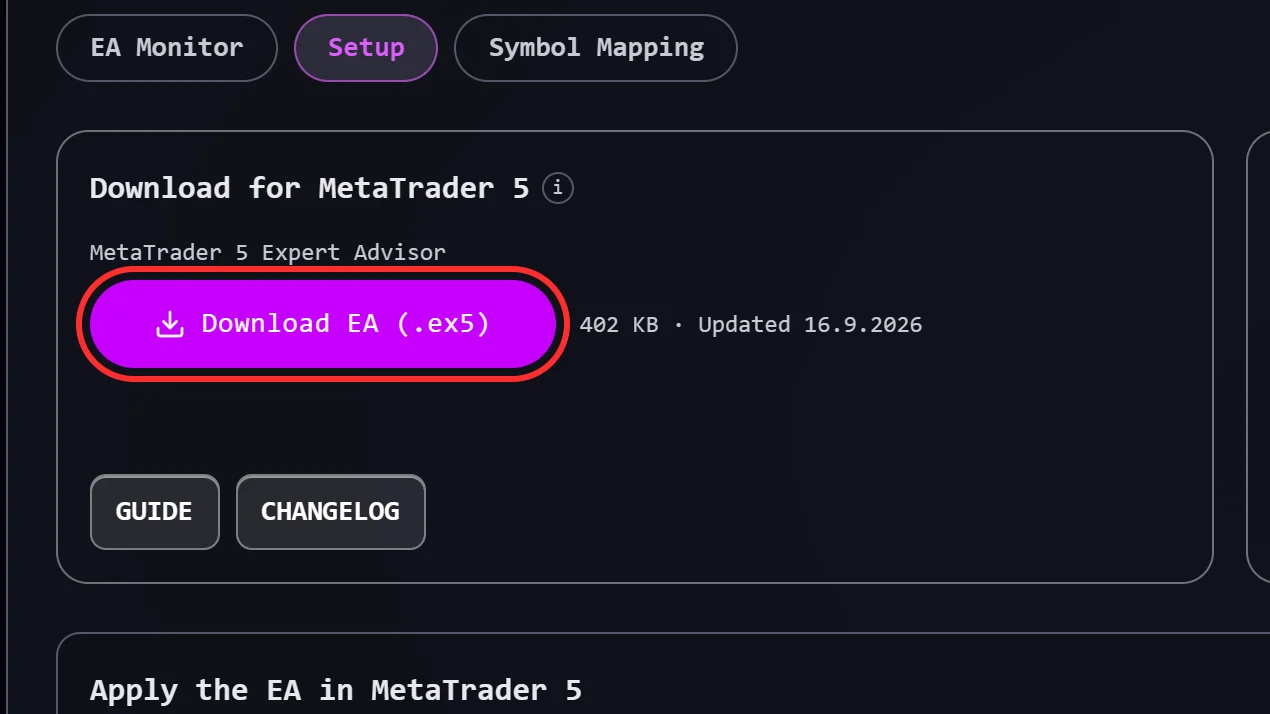
- Drop It into MetaTrader 5 In MT5: File → Open Data Folder → MQL5 → Experts. Copy the .ex5 in. Back in MT5, right-click the Navigator → Refresh (or restart MT5). It is listed under Expert Advisors as ORBit EA.
Allow the EA to Reach the Server
MetaTrader blocks internet access until you allow one address. Once per terminal.
- Copy the Address The WebRequest tile on the Setup tab → Copy. It is
https://orbit-api.tlfx.workers.dev. - Open the Options In MT5: Tools → Options (Ctrl+O) → the Expert Advisors tab.
- Allow It Tick Allow WebRequest for listed URL, double-click the empty row, paste the address, press Enter. A green tick appears beside it. Click OK.
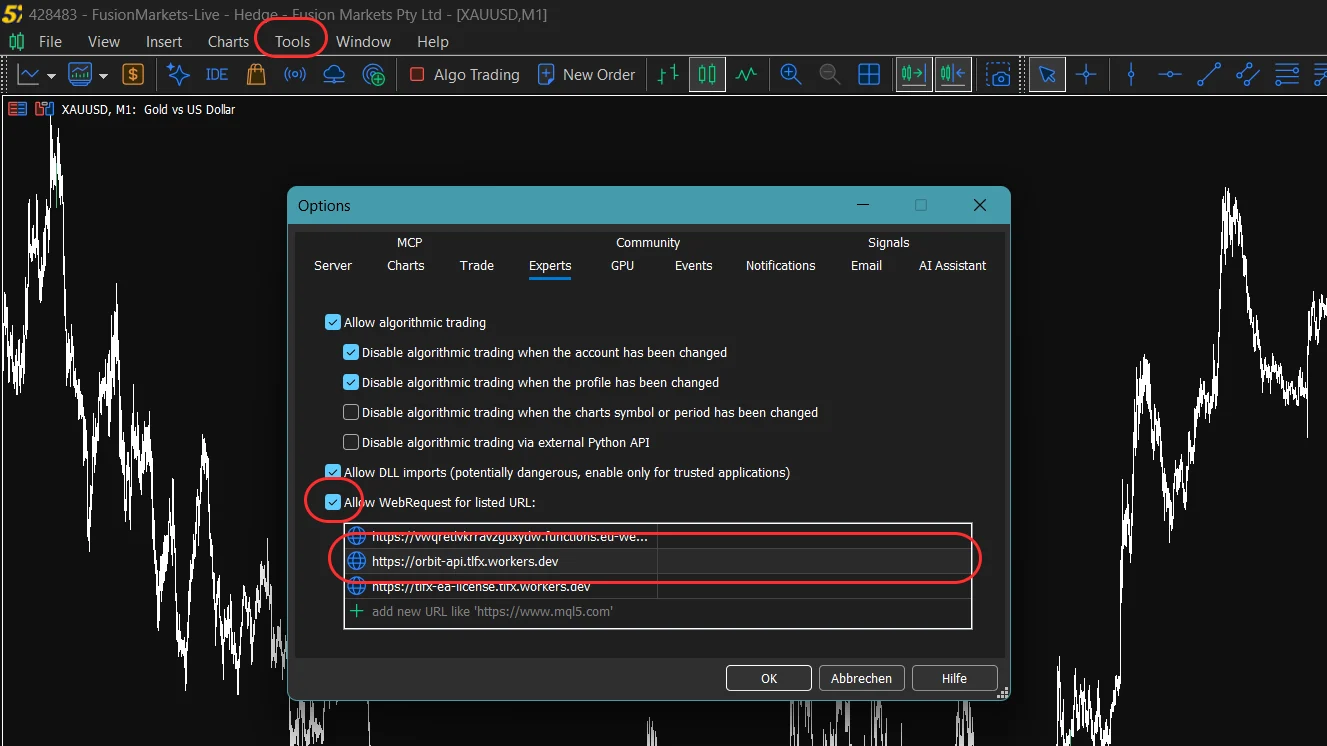
Copy Your Licence Key
One key for the ORBit plan — the same one the NinjaTrader algo uses.
- Find the License Key Tile Setup tab. Copy puts the key on your clipboard.
- Check Your Activations The tile lists every computer using the key: its name, platform, when it was activated and last seen. Rename one (“Office PC”, “VPS”) so you can tell them apart; Release one you no longer use to free its slot.
Map Your Broker’s Symbols
Tell the EA what your broker calls each market. Once per broker.
ORBit calls Nasdaq “NQ”; your broker may call it US100, NAS100 or USTEC.cash. The symbol map is that translation. Fusion Markets, E8 Markets and AvaFutures (a Mini and a Micro map) come ready-made — on any of them, skip to Publish your portfolio. The AvaFutures maps name real futures by their contract root (ENQ or MNQ for Nasdaq); the EA from version 3.0 trades the front month and rolls it by itself.
- Open Symbol Mapping ORBit EA → Symbol Mapping.
- Add a Broker Map Add a Broker Map → name it (e.g. “TickMill”) → Copy From the closest ready-made map → Create. Most brokers name markets almost identically, so you only fix what differs.
- Fill In Your Broker’s Names In MT5 press Ctrl+M for Market Watch and copy each symbol name exactly, suffix included (US100.cash, EURUSD.a). Leave a market blank if you do not trade it. Rows you have not edited stay dimmed.
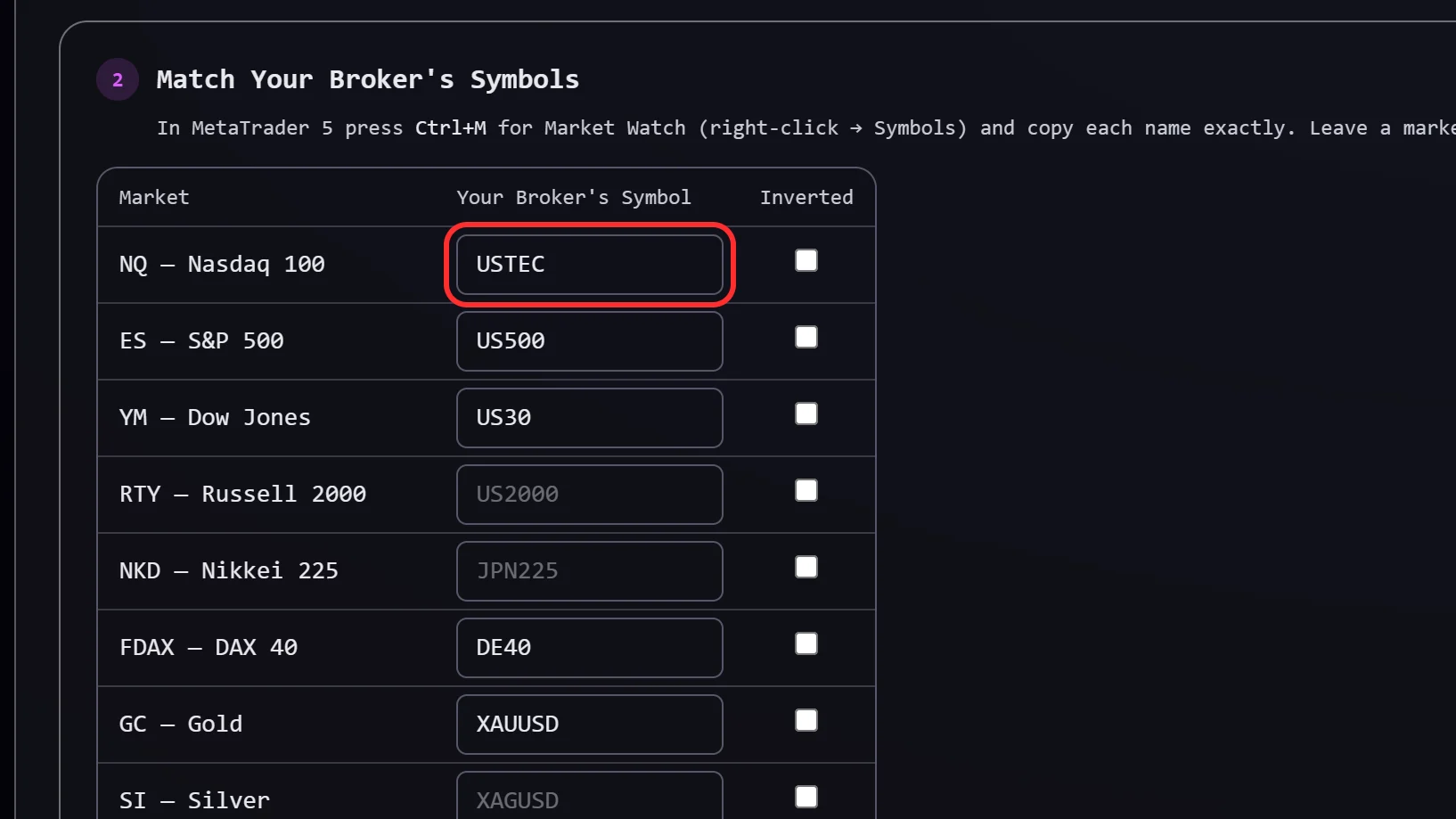
- Tick Inverted Where Needed Only for a broker that quotes a currency the other way round (USDJPY for the 6J future, USDCHF for 6S) — the EA then mirrors the direction.
- Save Save Map.
Publish Your Portfolio as a Preset Code
The EA pulls the setup and the symbol map online by one short code.
- Open the Portfolio ORBit Assembler → the saved portfolio’s card under Saved Edges.
- Attach the Broker Map The small dropdown on the card. The choice is stored on that portfolio, so different portfolios can run on different brokers. Pick the map before you copy the code — the map travels with it.
- Click Copy EA Code The cloud icon on the card. The tool uploads the setup with the map and copies the code; the icon turns into a tick.
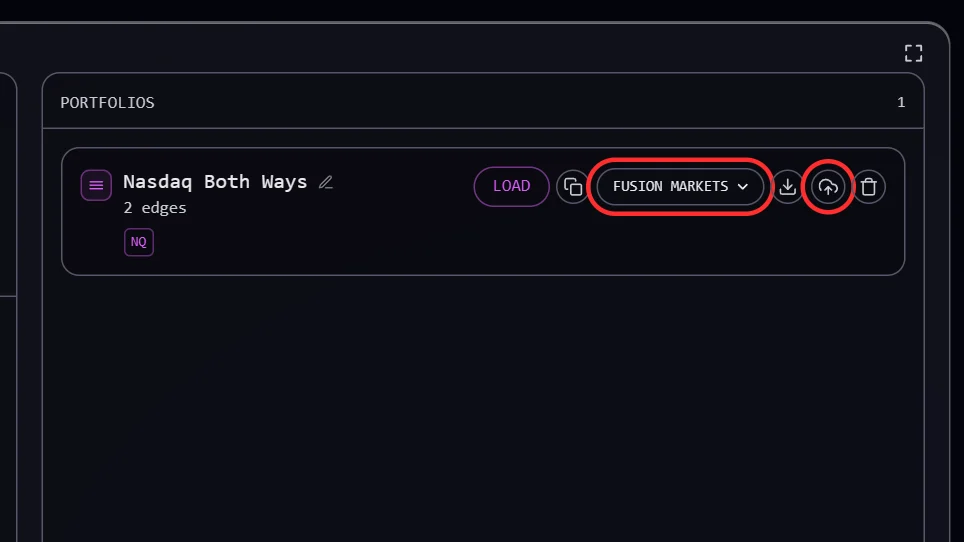
A single edge is published the same way from its own card, which has its own broker map dropdown. It trades the chart it is attached to, and the EA checks that chart against the map — attach it to the market the map names. The two example edges have no Copy EA Code; save one as your own edge first.
Attach the EA and Paste the Keys
One EA, one chart, the whole portfolio.
- Open Any Chart The market does not matter for a portfolio — the EA opens a window for each edge by itself. For a single edge, open that edge’s market.
- Drag ORBit EA onto It From the Navigator. The settings dialog opens.
- Paste the Two Codes Inputs tab, Licensing: your License Key and the Portfolio or Edge Preset Code. Leave the WebRequest line as shipped.
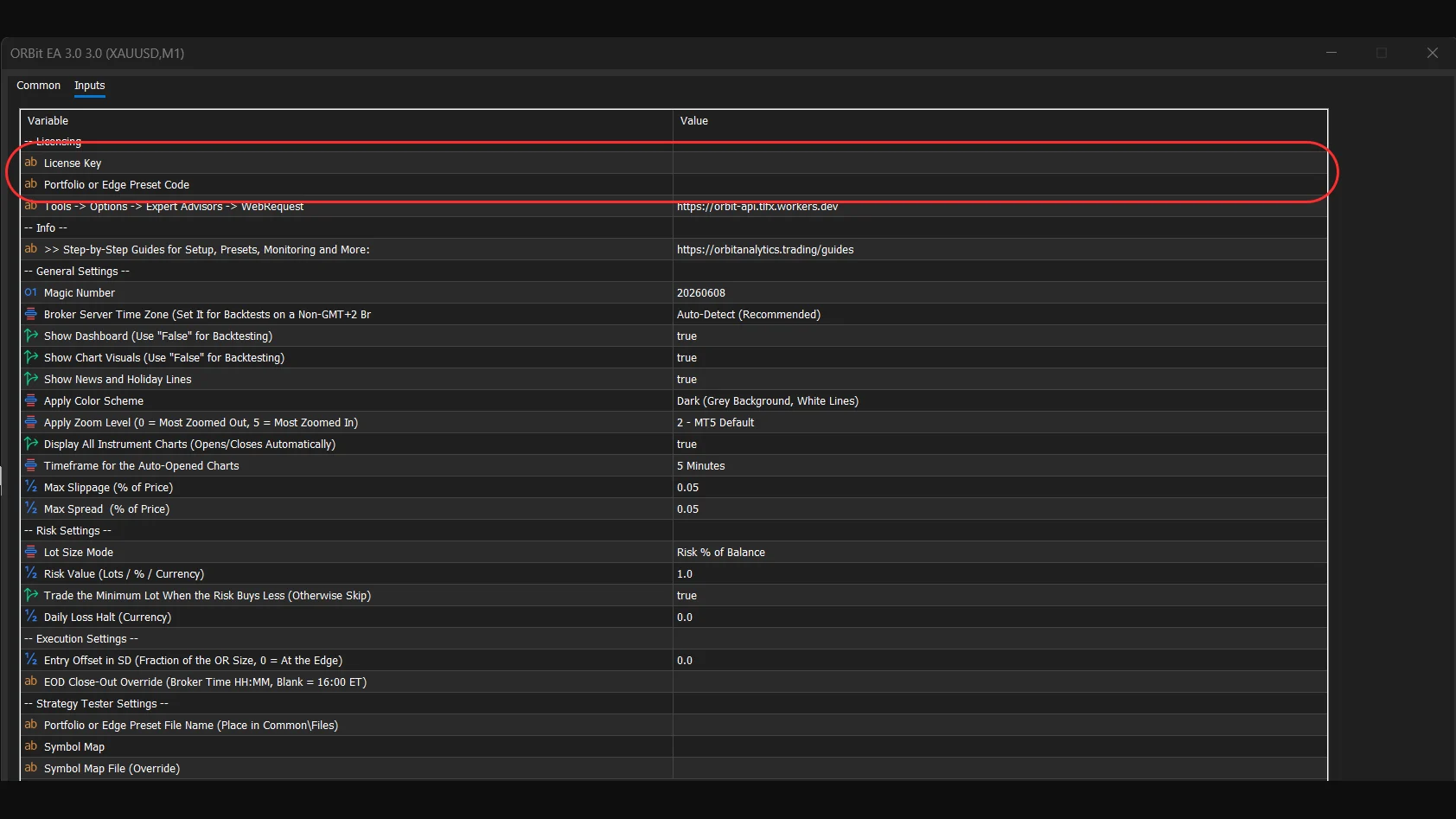
- Set Your Risk See Size the positions. The default risks 1% of the balance per trade.
- Turn on Algo Trading The toolbar button turns green. The EA’s icon in the chart’s top-right corner shows it is live, and the dashboard appears.
Check It Started
The Experts tab (Toolbox → Experts) says so in plain words.
- ORBit EA v3.1 loaded — the version that is running.
- The licence check passing, the preset code loading, and one line per edge with the broker symbol it resolved to.
- Any edge it had to skip, and why — usually a missing symbol-map entry.
- A NOT ENFORCED line if the portfolio uses the volume filters on a CFD.
From then on every decision is logged too: the range forming, the filters passing or blocking, every order and its outcome, and every closed trade with the reason it closed. A short status line follows every four hours.
Read the Panel on the Chart
A summary panel, plus a card for each edge.
- Main Panel
- The portfolio name, the open position, and the running totals: trades, win rate, profit factor, recovery factor and P&L.
- Edge Card: Identity
- Symbol (ORBit name → broker name), the range window in New York time, trade type, direction, trigger, and the target and stop (or the fill level, trigger line, entry for the trade types that have one).
- Edge Card: Filters
- Every filter the edge could use, with the edge’s setting beside today’s value — so you see at a glance why a day is taken or skipped.
- State
- What the edge is doing right now: waiting for the range, armed, in a trade, filtered out, done.
Show Dashboard and Show Chart Visuals switch the panel and the range drawings off — worth doing in the Strategy Tester, where they slow a backtest down.
Size the Positions
Risk Settings.
| Input | Default | What It Does |
|---|---|---|
| Lot Size Mode | Risk % of Balance | Fixed Lot Size, Risk % of Balance, or Risk in Account Currency per trade. |
| Risk Value (Lots / % / Currency) | 1.0 | Read in the unit Lot Size Mode picks. |
| Trade the Minimum Lot When the Risk Buys Less | On | When your risk buys less than the broker’s minimum lot (one contract on futures): On trades the minimum, Off skips the entry. The log says which. |
| Daily Loss Halt (Currency) | 0 = off | No new entries once today’s realised loss reaches the amount. |
With a portfolio, each edge sizes on its own stop. If the portfolio was saved with Split risk, the budget is divided across the edges so the whole basket risks what a single edge would.
All Other Settings
Most never need changing.
| Input | Default | When to Change It |
|---|---|---|
| Magic Number | 20260608 | Only when running a second ORBit EA in the same terminal — set it 1000 higher. The EA refuses to start on a clash and says so. |
| Broker Server Time Zone | Auto-Detect | The EA works out your broker’s server clock itself. Set it by hand only for a Strategy Tester backtest on a broker whose server does not run on GMT+2/+3. |
| Apply Color Scheme · Apply Zoom Level | Dark · 2 | Appearance of the charts the EA opens. “Disabled” keeps your own colours. |
| Display All Instrument Charts · their Timeframe | On · M5 | The per-edge chart windows. |
| Show News and Holiday Lines | On | Draws every US news release as a red dotted line at its release time, and a line on each US market holiday, named on hover. |
| Max Slippage · Max Spread (% of price) | 0.05 · 0.05 | Skip an entry when the market is this wide or slips this far. |
| Entry Offset in SD | 0 | Touch entries only: pulls the entry inside the range edge by a fraction of the range. |
| EOD Close-Out Override | blank = 16:00 ET | Close earlier than the session end, in broker time (HH:MM). It can only pull the close earlier. |
Watch It from the EA Monitor
Every running EA reports once a minute — no need to log into the VPS.
- Open the Monitor ORBit EA → EA Monitor. One card per account, however many portfolios run on it: name, broker, account number, Netting or Hedging, equity, today’s running P&L (closed trades plus the open ones) and Online / Offline.
- Select a Card The dashboard below has three views: Metrics (the equity curve and the numbers), Open & Closed Positions and Calendar.
- Narrow It Down The Portfolio and Symbol menus in the dashboard header filter everything below them, and the two position tables name the portfolio each row came from. Equity, balance and margin belong to the account and never filter.
- Name the Account Hover the card → Rename (“VPS”, “Prop 1”). Hide tucks a demo away; Delete erases its history for good.
Halt It from Anywhere
Stop an EA opening trades without touching the terminal.
- Click Halt Trading In the EA Monitor header. It halts every portfolio on the selected account — or just one, if the Portfolio filter is set. Tick close its open positions now to flatten at market too — unticked, open trades run to their own stop or target.
- Wait for Halted The pill reads Halting… until the next heartbeat (within a minute), then Halted. It cancels its resting entry orders, blocks new ones, and stays on its chart.
- Resume Resume Trading arms it again on the next heartbeat.
The halt is held on your account, not in the terminal — restarting MetaTrader or the VPS does not undo it.
Backtest in the Strategy Tester
The tester has no internet, so the preset and the symbol map go in as files instead of codes.
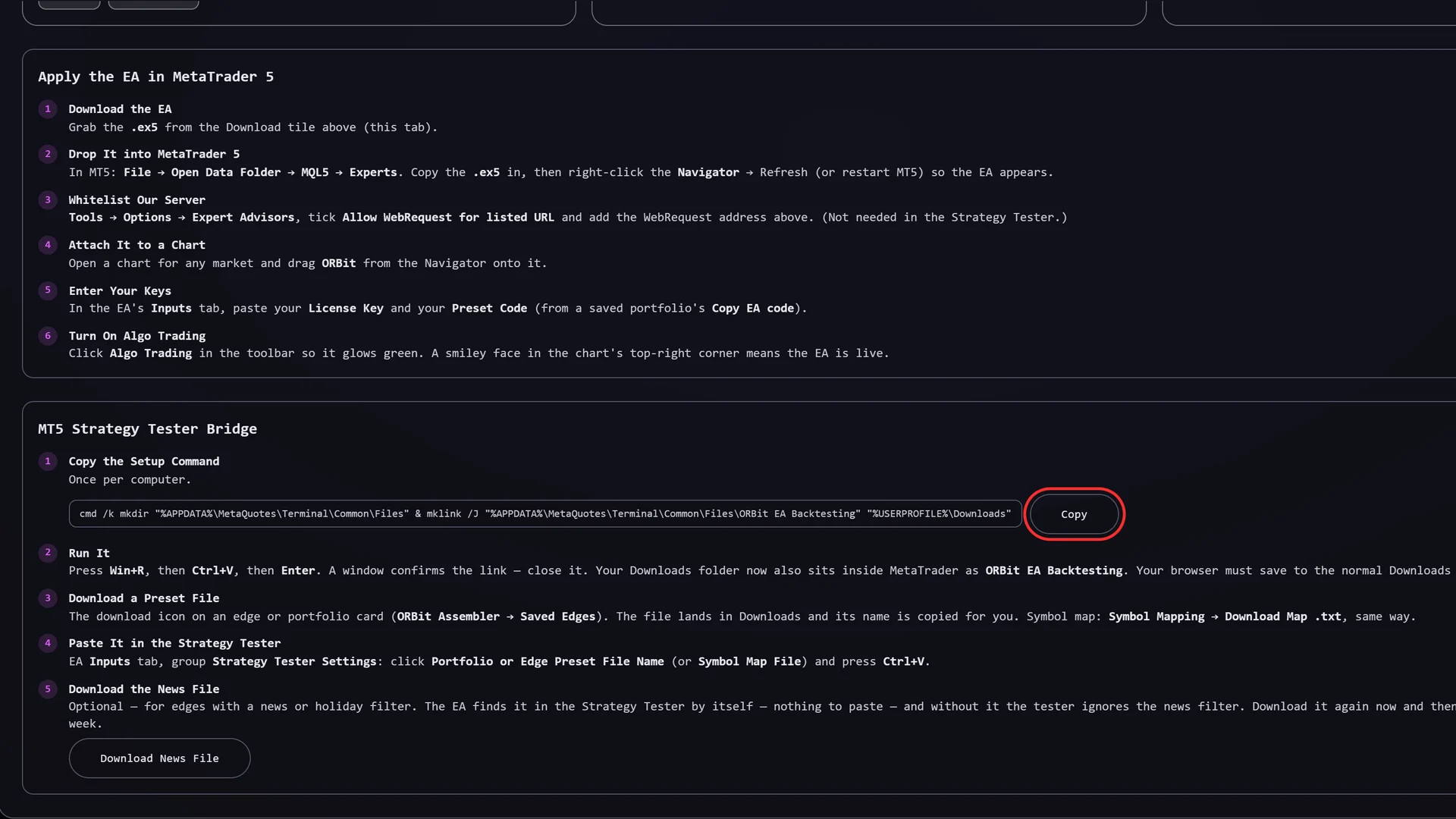
- Link the Backtesting Folder Once per Computer ORBit EA → Setup → MT5 Strategy Tester Bridge → Copy first, then press Win+R, Ctrl+V, Enter. A window confirms the link: your Downloads folder now shows up inside MetaTrader’s Common\Files as ORBit EA Backtesting, the only place the tester can read files. No admin rights needed. Your browser must save downloads to the normal Downloads folder.
- Download the Preset File ORBit Assembler → Saved Edges. For a portfolio or a single edge: the download icon on its card, left of the upload icon. The file lands in Downloads and its name —
ORBit EA Backtesting\orbit-….txt— is copied for you.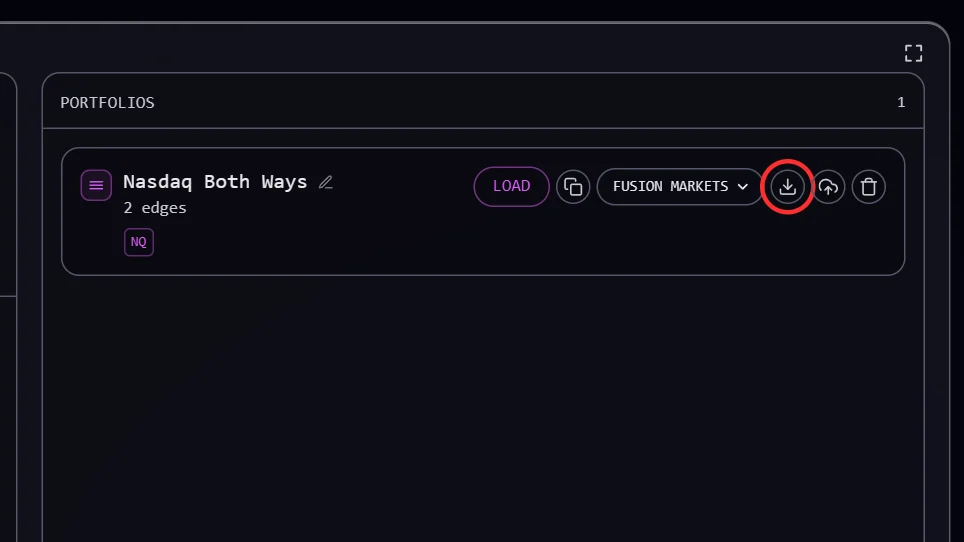
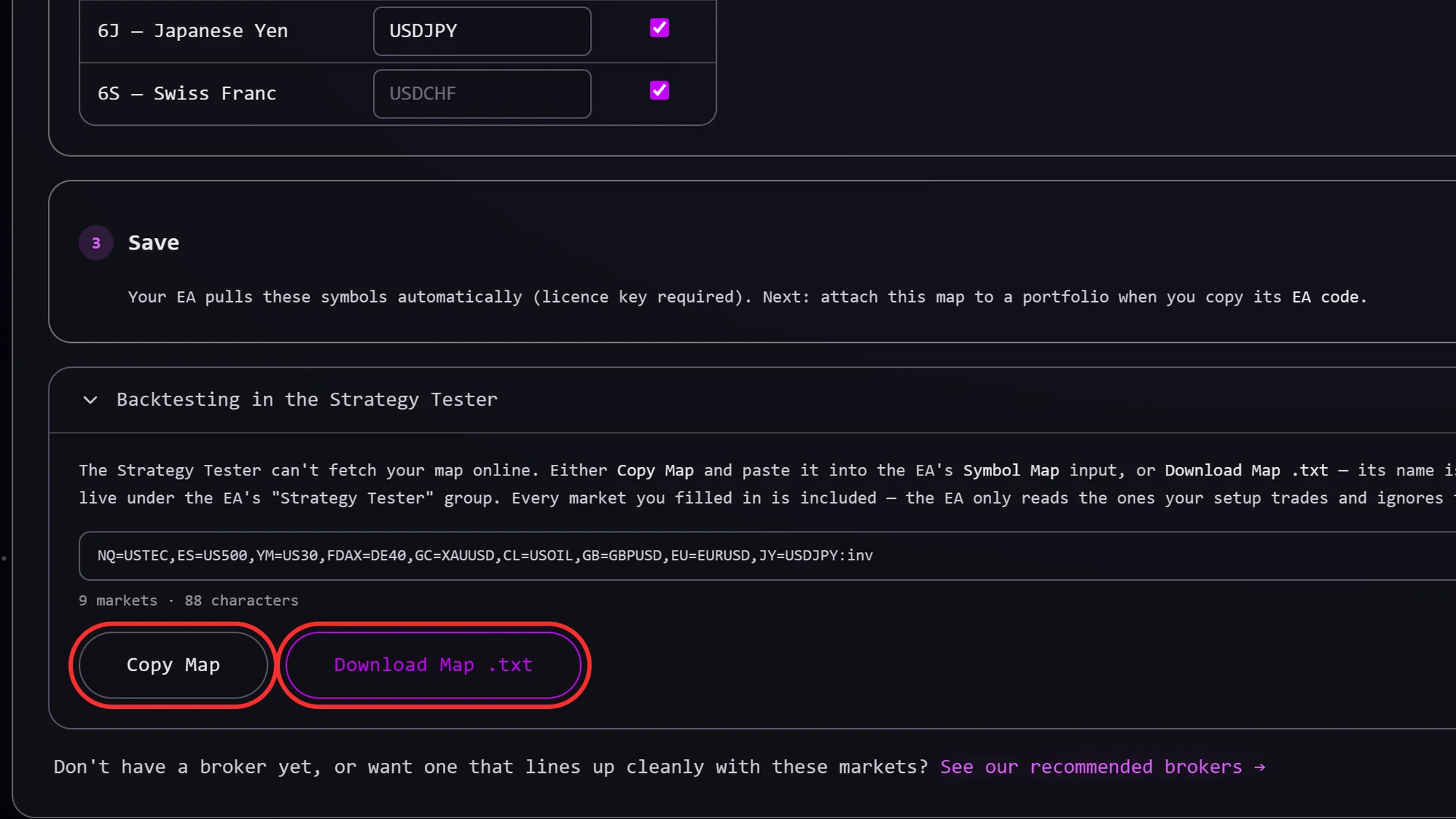
- Get the Symbol Map ORBit EA → Setup → MT5 Strategy Tester Bridge → pick your map → Download Map .txt (its name is copied the same way) or Copy Map.
- Open the Strategy Tester In MT5: Ctrl+R. Expert: ORBit EA. Symbol: the edge’s market at your broker (for a portfolio, any of its markets). Pick the date range, and set the deposit and its currency to match your account.
- Model: 1 Minute OHLC or Every Tick 1 minute OHLC is fast; Every tick based on real ticks is slower and closer to live. Never Open prices only — the EA builds the range from 1-minute bars and cannot without them.
- Fill In the Inputs Inputs tab, group Strategy Tester Settings: paste (Ctrl+V) the copied name into Portfolio or Edge Preset File Name, and the map pasted into Symbol Map (or its file name in Symbol Map File). License Key and Preset Code can stay blank. Set Show Dashboard and Show Chart Visuals to false for speed, and your risk settings as you would live.
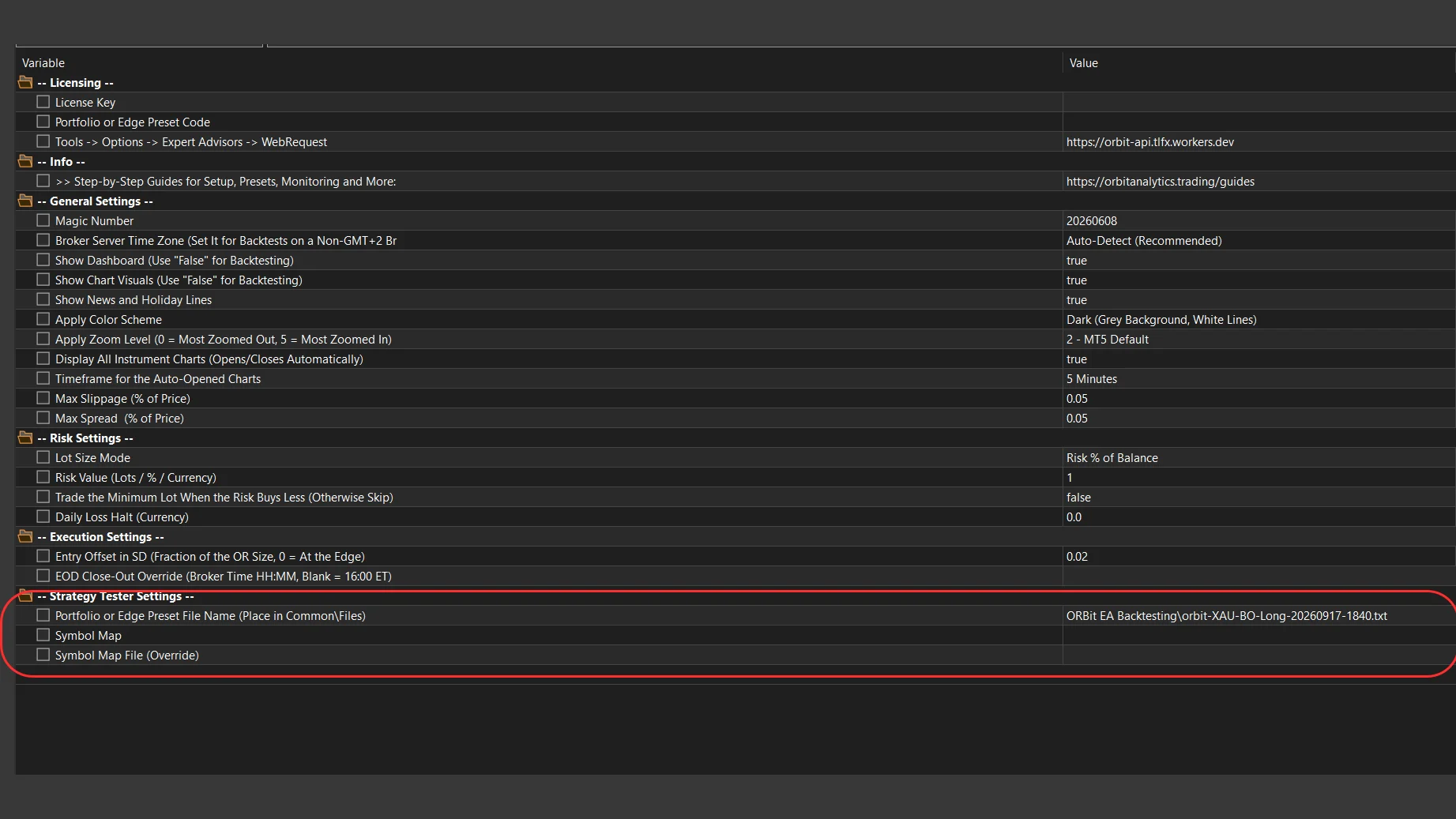
- Start and Check the Journal Click Start. The first lines name the preset file it opened and the edges it loaded. could NOT open preset file means the file name or folder is wrong; has no symbol-map entry - SKIPPED means a market is missing from the map.
%APPDATA%\MetaQuotes\Terminal\Common\Files yourself and type its name with .txt at the end. Compare the Backtest with the Tool
The tester trades your broker’s prices; the tool measured the futures. Expect close, not identical.
- Read the Report The Backtest tab shows the net result, drawdown and trade count; the equity graph sits beside it.
- Check Single Days Compare a few trades with the same edge in ORBit Charts. Same day, same direction, entry and exit on roughly the same bar is a match.
- The holiday filter always applies in the tester. The news filter applies once the news file from the MT5 Strategy Tester Bridge is downloaded; without it an edge that uses news trades a few more days here.
- The custom number bands are not applied by the EA, and on a CFD neither are the volume filters — a CFD feed has no real contract volume. The Journal lists them as NOT ENFORCED. On exchange futures the volume filters apply.
- Spread, slippage and commission are real in the tester and not in the tool.
- A CFD can break the range a bar earlier or later than the future did.
It Is Not Trading
Find the line in the Experts tab, then the fix.
- “could NOT REACH the license server” / “WebRequest failed”
- The address is not whitelisted (or typed with a difference). See Allow the EA to reach the server, then remove and re-attach the EA.
- “NO LICENSE KEY”
- The License Key input is empty. Copy the key from the Setup tab, paste it in and attach the EA again. (Only the Strategy Tester runs without a key.)
- “ACTIVATION LIMIT REACHED”
- All three slots are taken. Release the computer you no longer use in the License Key tile, then re-attach.
- “NOT LICENSED - key invalid/rotated …”
- The key was mistyped or regenerated, or the ORBit plan is not active. Copy it again from the Setup tab.
- “no preset loaded” / NAME Row Says NO PRESET
- Paste a Preset Code. It also needs the License Key — a code without a key cannot be fetched.
- “preset code … not available”
- The code was typed wrong, or never published. Click Copy EA code on the card again and paste the fresh code.
- “edge … has no symbol-map entry - SKIPPED”
- Your broker map has no name for that market. Fill it in, save, and re-publish the portfolio.
- “edge … REFUSED - … this chart is …”
- The EA is on a different market’s chart than the edge trades (from EA 3.0). Attach it to the chart the message names.
- “the broker has no symbol …”
- The name in the map does not exist at your broker — usually a missing suffix. The log suggests the closest match.
- “cannot VALUE …”
- The terminal cannot convert that market’s profit into your account currency. Add the conversion pair (e.g. EURUSD for a euro-priced market on a dollar account) to Market Watch.
- News Row Says “no feed” and Every Day Is Filtered Out
- The news feed could not be fetched — the same whitelist fixes it. It retries every minute.
- “another ORBit EA … is already using Magic Number”
- Two EAs in one terminal. Give the second one a Magic Number 1000 higher.
- “[Gate] … no Touch Breakout today”
- Not an error. A Touch Breakout skips the day when the first touch of the range came before its entry orders were in place: the trade window had not opened, the licence was not verified yet, Algo Trading was off or the terminal was disconnected. The line names which. Entering late, on a later touch, is not the trade the edge measured.
- Nothing Happens at All
- Algo Trading is off (the toolbar button is not green), or the EA’s icon on the chart is greyed out — check “Allow Algo Trading” on its Common tab.
Still stuck? Open the account in the EA Monitor and press Send Logs. Every running EA on that account (version 3.0 or newer) uploads its log for today and yesterday to us within a minute; you can send once an hour. Then tell us on Discord or by email what to look at. The same log is kept on your computer in MQL5\Files\ORBit_Logs.
Install a New Version
Replace the file, re-attach, done.
- See What Changed The Download tile’s Changelog button. Switch on Email me on new versions there (or under Account → Notifications) to be told by email.
- Replace the File Download the new .ex5 and copy it over the old one in MQL5 → Experts.
- Restart the EA Remove it from the chart and drag it back on (or restart MT5). The Experts tab’s loaded line shows the new version, and so does the EA Monitor card.
Still Stuck?
Ask in the Discord or send us an email — include the lines from the log or a screenshot of the dashboard, and it is usually solved in one reply.